

Extras
Delivery Reports
SMSEagle software allows you to enable delivery reports for each sent SMS. Delivery reports is afeature that allows to receive a confirmation that SMS was received on recipients phone.
In order to enable delivery reports, please go to web-GUI > menu Settings and set “Delivery Reports” to “Yes”

Once delivery reports are enabled in in web-GUI, you may verify whether SMS was delivered to recipient:
In web-GUI
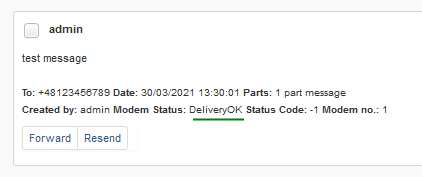
In menu Folders > Sent items > open the message you want to check. Press “Show Details“ in top-right corner of the message. Field “Modem Status” contains information on delivery status
Using Webhooks
CallbackURL feature allows to define a webook for the change of delivery status. Webhooks are standard HTTP endpoints implemented in your external application that will accept HTTP requests from SMSEagle device. Webhooks save you from having to continuously send requests to the SMSEagle device asking for message status. See more details on Callback URL chapter of this User’s Manual.Using API
Use method “read_sms” to fetch data for a selected SMS in sentitems folder. The data will contain columns “Status” and “DeliveryDateTime” contain information about delivery status of the message. For more information about possible values for “Status” column, please refer to the table “Field Description Of Response Data – Sentitems Folder” in the APIv1 Reference.
Connecting directly to SMSEagle database
SMSEagle’s database operates on PostgreSQL database engine. You may use a direct access to database for reading/writing SMS messages directly from/to database via SQL queries.
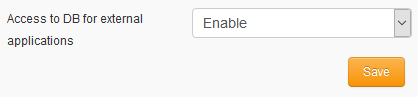
The database access for external applications is disabled by default. In order to enable it, go to webGUI > menu Settings and enable to following setting:
Once database access is enabled, it is possible to connect to the database from external application using the following credentials:
Host: IP address of your device
Database name:
smseagleUser:
smseagleuserPassword:
postgreeagle
Injecting short SMS using SQL
The simplest example is short text message (limited to 160 chars):
INSERT INTO outbox (
    DestinationNumber,
    TextDecoded,
    CreatorID,
    Coding,
    Class,
    SenderID
) VALUES (
    '1234567',
    'This is a SQL test message',
    'Program',
    'Default_No_Compression',
    -1,
    'smseagle1'
);
INSERT INTO user_outbox (
    id_outbox,
    id_user
) SELECT CURRVAL(pg_get_serial_sequence('outbox','ID')), 1;
In the above example the message will belong to user with id_user 1 (default ‘admin’). You can find id_user values for other users in table public.”user”. Field SenderID contains identification number of SMSEagle modem. For modem 1 SenderID = smseagle1 and for modem 2 SenderID = smseagle2.
Injecting long SMS using SQL
Inserting multipart messages is a bit more tricky, you need to construct also UDH header and store it hexadecimally written into UDH field. Unless you have a good reason to do this manually, use API.
For long text message, the UDH starts with 050003 followed by byte as a message reference (you can put any hex value there, but it should be different for each message, D3 in following example), byte for number of messages (02 in example, it should be unique for each message you send to same phone number) and byte for number of current message (01 for first message, 02 for second, etc.).
For example, long text message of two parts could look like following:
INSERT INTO outbox (
    "DestinationNumber",
    "CreatorID",
    "MultiPart",
    "UDH",
    "TextDecoded",
    "Coding",
    "Class",
    "SenderID"
) VALUES (
    '1234567',
    'Program',
    'true',
    '050003D30201',
    'Lorem ipsum dolor sit amet, consectetur adipiscing elit, sed do eiusmod tempor incididunt ut labore et dolore magna aliqua. Ut enim ad minim veniam, qui',
    'Default_No_Compression',
    -1,
    'smseagle1'
)
INSERT INTO outbox_multipart (
    "ID",
    "SequencePosition",
    "UDH",
    "TextDecoded",
    "Coding",
    "Class"
) SELECT
    CURRVAL(pg_get_serial_sequence('outbox','ID')),
    2,
    '050003D30202',
    's nostrud exercitation ullamco laboris nisi ut aliquip ex ea commodo consequat.',
    'Default_No_Compression',
    -1;
INSERT INTO user_outbox (
    id_outbox,
    id_user
) SELECT
    CURRVAL(pg_get_serial_sequence('outbox','ID')),
    1;
Note: Adding UDH means that you have less space for text, in above example you can use only 153 characters in single message.
Database cleaning scripts
We have added some useful scripts which may be used to delete SMS messages from database through Linux CLI.
Scripts are located at following directory: /mnt/nand-user/scripts/
db_delete – script for deleting SMS from folders Inbox, SentItems older than provided date. Usage:
./db_delete YYYYMMDDhhmmdb_delete_7days – script for deleting SMS from folders Inbox, Sentitems older than 7 days. Usage:
./db_delete_7daysdb_delete_allfolders – script for cleaning PostgreSQL database folders (Inbox, SentItems, Outbox). Specially designed to run periodically through cron. Usage:
./db_delete_allfoldersdb_delete_select - script for deleting SMS from chosen databse folder (Inbox, Outbox, SentItems, Trash). Usage:
./db_delete_select {inbox|outbox|sentitems|trash}
Adding script to system cron daemon
Create a file inside /etc/cron.d/ directory with your desired name (eg. pico db_cleaner)
Example content of this file:
0 0 1 * * root /mnt/nand-user/scripts/db_delete_allfoldersThis will run cleaning script every 1st day of month.
SNMP agent
“Simple Network Management Protocol (SNMP) is an Internet-standard protocol for managing devices on IP networks. It is used mostly in network management systems to monitor network-attached devices for conditions that warrant administrative attention” (source: Wikipedia).
SMSEagle device has a built-in Net-SNMP agent. The SNMP agent provides access to Linux Host MIB tree of the device, and additionally (using extension NET-SNMP-EXTEND-MIB) allows access to custom metrics specific to SMSEagle.
Available SNMP metrics that describe a state of a SMSEagle device are:
Metric name |
Description |
OID |
|---|---|---|
GSM_Signal1 |
Returns 3G/4G signal strength in percent for modem 1. Value range: 0-100. If modem is disconnected from cellular network GSM_Signal returns 0. |
.1.3.6.1.4.1.8072.1.3.2.3.1.2.11.71.83.77.95.83.105.103.110.97.108.49 |
GSM_Signal[X] |
Returns 3G/4G signal strength in percent for modem X. Value range: 0-100. If modem is disconnected from cellular network GSM_Signal returns 0. |
.1.3.6.1.4.1.8072.1.3.2.3.1.2.11.71.83.77.95.83.105.103.110.97.108.[48+X] |
GSM_NetName1 |
Returns cellular network name on modem 1 |
.1.3.6.1.4.1.8072.1.3.2.3.1.2.12.71.83.77.95.78.101.116.78.97.109.101.49 |
GSM_NetName[X] |
Returns cellular network name used on modem X |
.1.3.6.1.4.1.8072.1.3.2.3.1.2.12.71.83.77.95.78.101.116.78.97.109.101.[48+X] |
GSM_ModemState[X] where X is the no of modem |
Returns modem state information enabled/disabled |
.1.3.6.1.4.1.8072.1.3.2.3.1.2.11.77.111.100.101.109.83.116.97.116.101.49 (for 1st modem) |
FolderOutbox_Total |
Returns number of SMS messages in Outbox folder (outgoing queue length) |
.1.3.6.1.4.1.8072.1.3.2.3.1.2.18.70.111.108.100.101.114.79.117.116.98.111.120.95.84.111.116.97.108 |
FolderInbox_Total |
Returns number of SMS messages in Inbox folder |
.1.3.6.1.4.1.8072.1.3.2.3.1.2.17.70.111.108.100.101.114.73.110.98.111.120.95.84.111.116.97.108 |
FolderSent_Last24H |
Returns number of SMS messages sent from the device within last 24 hours |
.1.3.6.1.4.1.8072.1.3.2.3.1.2.18.70.111.108.100.101.114.83.101.110.116.95.76.97.115.116.50.52.72 |
FolderSent_Last1M |
Returns number of SMS messages sent from the device within last month |
.1.3.6.1.4.1.8072.1.3.2.3.1.2.17.70.111.108.100.101.114.83.101.110.116.95.76.97.115.116.49.77 |
FolderSent_Last24HSendErr |
Returns number of SMS messages sent with error within last 24h. Error occurs when 3G modem cannot send SMS message or message is rejected by 3G/4G carrier (mostly happens when a credit on pre-paid SIM card is over) |
.1.3.6.1.4.1.8072.1.3.2.3.1.2.25.70.111.108.100.101.114.83.101.110.116.95.76.97.115.116.50.52.72.83.101.110.100.69.114.114 |
Temp |
Returns last value of Temperature (in °C) from internal DHT22 sensor. Requires sensor to be enabled. |
.1.3.6.1.4.1.8072.1.3.2.4.1.2.4.84.101.109.112.1 |
Humidity |
Returns last value of Humidity (in %) from internal DHT22 sensor. Requires sensor to be enabled. |
.1.3.6.1.4.1.8072.1.3.2.3.1.2.8.72.117.109.105.100.105.116.121 |
Temp[X] where X is between 1 and 4 |
Returns last value of Temperature (in °C) from: Temp1: internal temperature sensor Temp2-Temp4: external 1-Wire temp sensors. |
.1.3.6.1.4.1.8072.1.3.2.4.1.2.5.84.101.109.112.49.1 (for 1st sensor) |
SIM_State[X] where X is the no of modem |
Returns information of physical SIM state |
.1.3.6.1.4.1.8072.1.3.2.3.1.2.10.83.73.77.95.83.116.97.116.101.49 (for 1st modem) |
SIM_RegState[X] where X is the no of modem |
Returns information of SIMcard registration state in the mobile network. |
.1.3.6.1.4.1.8072.1.3.2.3.1.2.13.83.73.77.95.82.101.103.83.116.97.116.101.49 (for 1st modem) |
Result values
Using OID
Result values for each custom metric are available and can be fetched from OID given in table above.
Using textual name
Alternatively result values for each custom metric can be fetched using textual names from OID tree under: NET-SNMP-EXTEND-MIB::nsExtendOutputFull.”[METRIC NAME]”
For example:
Result value for parameter GSM_Signal1:
NET-SNMP-EXTEND-MIB::nsExtendOutputFull.”GSM_Signal1”If your chosen SNMP tool cannot access NET-SNMP-EXTEND-MIB objects, you can download MIB definitions from: https://www.smseagle.eu/download/NET-SNMP-EXTEND-MIB.txt
Reading result values
In order to test-read the parameter values from SNMP agent you can use any tools available for SNMP protocol (for example: NET-SNMP library for Linux or iReasoning MiB-Browser for Windows).
Example of reading GSM_Signal1 value using NET-SNMP library
a) Command for reading the result value:
snmpget -v 2c -c public localhost .1.3.6.1.4.1.8072.1.3.2.3.1.2.11.71.83.77.95.83.105.103.110.97.108.49
Result:
NET-SNMP-EXTEND-MIB::nsExtendOutputFull.”GSM_Signal1” = STRING: 54
Comment: 3G/4G Signal strength value is 54%
Example of reading GSM_NetName1 value using NET-SNMP library
a) Command for reading the result value:
snmpget -v 2c -c public localhost .1.3.6.1.4.1.8072.1.3.2.3.1.2.12.71.83.77.95.78.101.116.78.97.109.101.49
Result:
NET-SNMP-EXTEND-MIB::nsExtendOutputFull.”GSM_NetName1” = STRING: PLAY
Comment: Currently used network at SIM card #1 is PLAY
Example of reading FolderOutbox_Total value using NET-SNMP library (and textual name of metric)
a) Command for reading the result value:
snmpget -v 2c -c public ip-of-smseagle ‘NET-SNMP-EXTEND-MIB::nsExtendOutputFull.”FolderOutbox_Total”’
Result:
NET-SNMP-EXTEND-MIB::nsExtendOutputFull.”FolderOutbox_Total” = STRING: 0
Comment: Number of SMS messages waiting in outbox queue is 0
Example of reading system uptime from Linux host using NET-SNMP library
a) Command for reading the result value:
snmpget -v 2c -c public ip-of-smseagle system.sysUpTime.0
Result:
DISMAN-EVENT-MIB::sysUpTimeInstance = Timeticks: (216622) 0:36:06.22
Comment: Linux system is up for 36 minutes, 6.22 seconds
Example of browsing SMSEagle extension parameters IN mib tree using NET-SNMP library
a) Command for reading the result value:
snmpwalk -v 2c -c public ip-of-smseagle .1.3.6.1.4.1.8072.1.3.2.3.1.2
Result:
NET-SNMP-EXTEND-MIB::nsExtendOutputFull.”GSM_Signal1” = STRING: 54
NET-SNMP-EXTEND-MIB::nsExtendOutputFull.”GSM_NetName1” = STRING: PLAY
NET-SNMP-EXTEND-MIB::nsExtendOutputFull.”GSM_NetName2” = STRING: PLAY
NET-SNMP-EXTEND-MIB::nsExtendOutputFull.”FolderInbox_Total” = STRING: 15
NET-SNMP-EXTEND-MIB::nsExtendOutputFull.”FolderSent_Last1M” = STRING: 19
NET-SNMP-EXTEND-MIB::nsExtendOutputFull.”FolderOutbox_Total” = STRING: 0
NET-SNMP-EXTEND-MIB::nsExtendOutputFull.”FolderSent_Last24H” = STRING: 0
NET-SNMP-EXTEND-MIB::nsExtendOutputFull.” FolderSent_Last24HSendErr” = STRING: 0
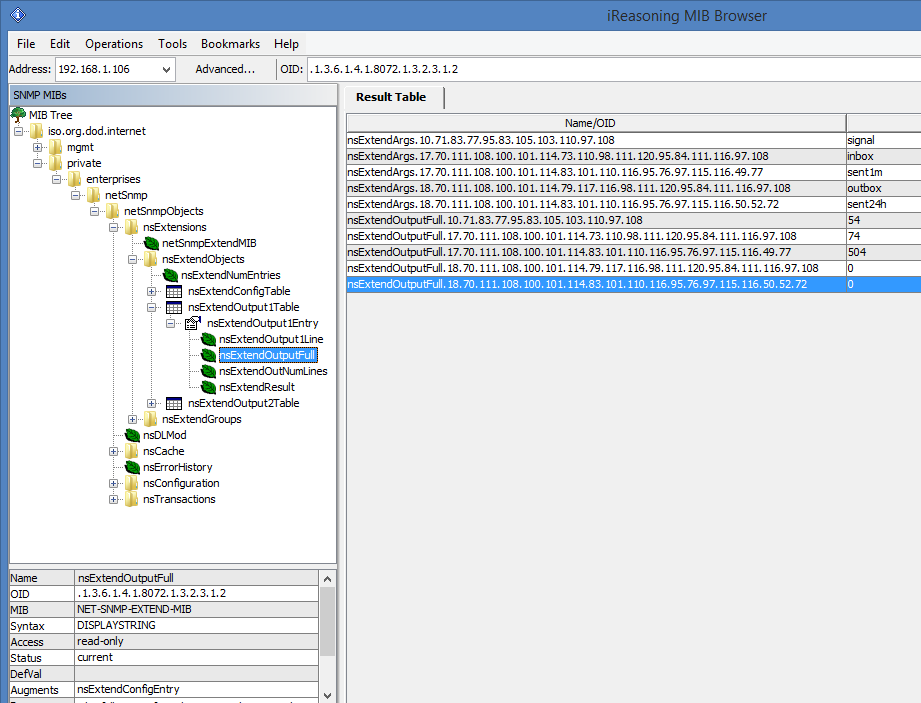
Example of browsing SMSEagle extension parameters IN mib tree using mib-browser
Setting up SNMP v3 access control
By default, SMSEagle devices uses SNMP v2 access control. Using v3 can strengthen security, however is not mandatory. To easily switch to SNMP v3 access control we’ve prepared special shell script located at /mnt/nand-user/smseagle directory.
Log in via SSH using root account
Navigate to:
cd /mnt/nand-user/smseagle/Configuration script:
./snmpv3Script can run with following parameters:
add
del
enablev2
disablev2
To add v3 USER please run:
./snmpv3 add USERNAME PASSWORD ENCRYPTIONPASSWORD
To delete USER please run:
./snmpv3 del
To disable v2 access policy run:
./snmpv3 disablev2
To enable v2 access policy run:
./snmpv3 enablev2
Forwarding logs to external server
Our devices run rsyslog for log managing. Here we describe how to configure additional rules for rsyslog daemon: rsyslogd. This is only a brief excerpt from rsyslog manual website. Full information is available at: http://www.rsyslog.com/
Rsyslogd configuration is managed using a configuration file located at /etc/rsyslog.conf
At the bottom of the configuration file add:
*.* action(type=”omfwd” target=”SERVER_IP” port=”PORT” protocol=”PROTOCOL”
action.resumeRetryCount=”10”
queue.type=”linkedList” queue.size=”10000”)
where: SERVER_IP – IP (or FQDN) address of receiving server
PORT – port on receiving server
PROTOCOL one of the values: tcp, udp
Example:
*.* action(type=”omfwd” target=”192.168.0.250” port=”10514” protocol=”tcp”
action.resumeRetryCount=”10”
queue.type=”linkedList” queue.size=”10000”)
SSL-encryption of your log traffic: please have a look at this article:
https://www.rsyslog.com/doc/v8-stable/tutorials/tls_cert_summary.html
Automatic software updates check
SMSEagle software is under process of continual improvement. We listen to our customers, and new releases are based on our customer’s inputs/requests. Software updates are released frequently, and offer access to new features and fixes to reported issues. Web-GUI offers you a possibility to automatically check for new software updates. This can be done in two ways:
Manual CHECK
In order to manually check for available software updates, go to menu Settings > tab Updates. Click on the button “Check for software update now”. At the top pops up a balloon in red with information if it is up-to-date.
Automatic check
In order to start automatic checks for software updates go to menu Settings > tab Updates, and check the option “Automatically check for software updates”. This will enable periodic checks (once a month) for available software updates. If a new update is available, a message “Update Available” will appear in menu Settings> Sysinfo – next to the current software version number.
If you select “Notify Admin about new software version by SMS”, the device will additionally send SMS to the default admin account (if the phone number is entered in the account) with a notification about new software update.
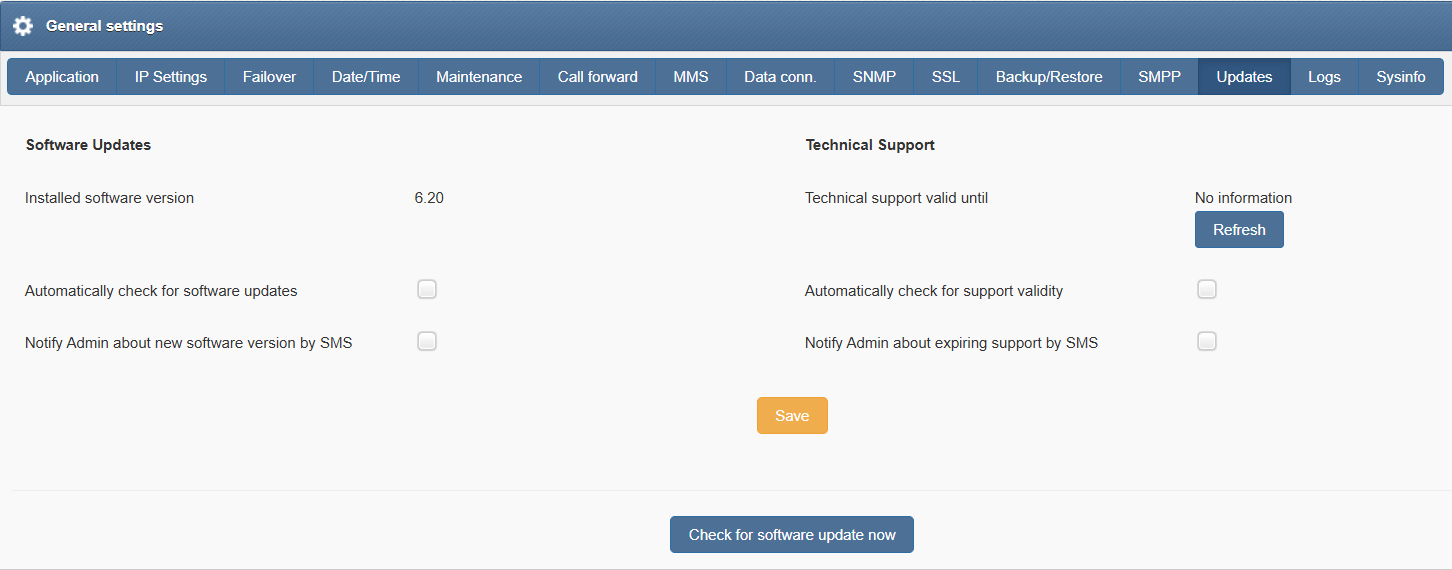
Screenshot from “General settings-Maintenance”
Notice: Your SMSEagle device must have a HTTPS connectivity with address updates.smseagle.eu in order for this feature to work.
Knowledgebase & Support Portal
More information and useful hints about SMSEagle device configuration can be found in our online knowledgebase and support portal at: https://support.smseagle.eu