
Prepare for First Start
Your SMSEagle is designed so that you can set it up quickly and start using it right away. Follow the steps below to get started.
STEP 1: Install the antenna(s)
Antenna installation guidelines
Install the antenna(s) in a location with access to a cellular network radio signal.
The antenna(s) must be installed such that it provides a separation distance of at least 30cm (12 inches) from all persons and must not be co-located or operating in conjunction with any other antenna or transmitter.
The antenna must not be installed inside metal cases.
Plug in antenna connector(s) to the device.
STEP 2: Insert SIM Card
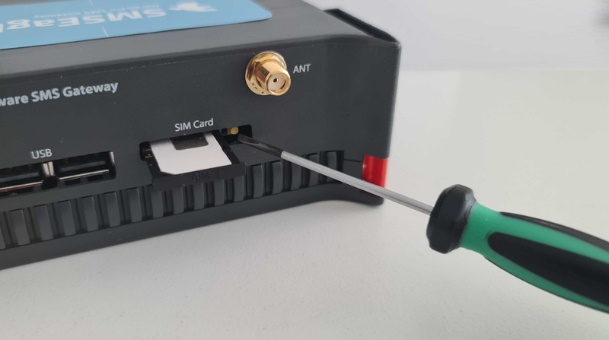
Please install SIM Card when the device is SWITCHED OFF. SIM Card slot is located at the bottom of the device. Use a ball-pen or small screwdriver to eject SIM Card tray. Insert card into tray and push it gently into slot.
STEP 3: Power the device
The device is powered with AC/DC power supply adaptor delivered in the box. The device needs a power source of 12V DC. In order to power the device simply plug in a connector from AC/DC adaptor into the device. Alternatively, the device can be powered via PoE+ (hardware Rev.4 only).
STEP 4: Configure IP settings
Note
SMSEagle default network configuration: DHCP client is on (IP address will be obtained automatically from your DHCP server)
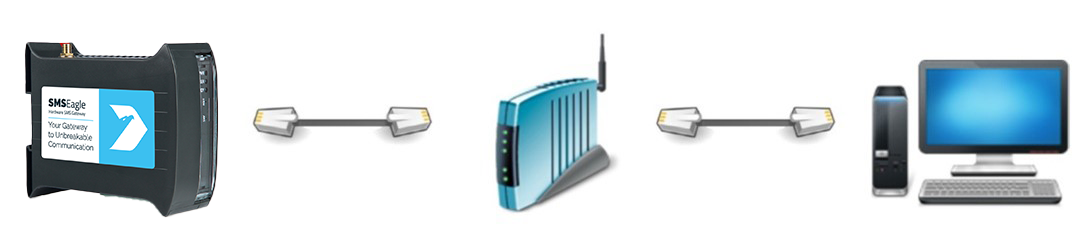
A) Connect SMSEagle to your LAN and obtain IP address automatically
connect the device to your LAN using Ethernet cable
SMSEagle will obtain IP address automatically from your DHCP
read assigned IP address on your DHCP server
B) Or set IP address for SMSEagle manually
connect a display using HDMI connector, connect a keyboard to USB port (note: cables are not provided)
login to the terminal window using root credentials (these were provided with your device)
edit configuration file with command:
nano /mnt/nand-user/smseagle/syscfgchange the following lines:
HOST_IP= (set IP address for your device)
GW_IP= (default gateway IP address)
NET_MASK= (set subnet mask)
START_DHCP=Y (set to START_DHCP=N to disable DHCP client)
save and exit the file
shutdown the device
now connect SMSEagle to your LAN using Ethernet cable
C) Log in to SMSEagle
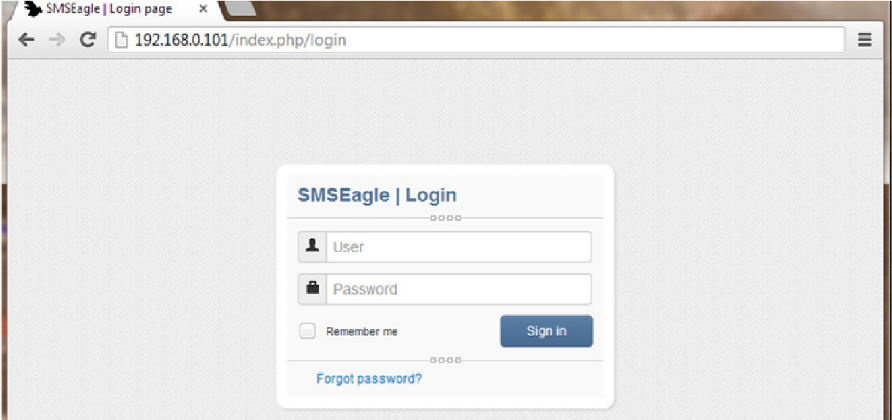
Open an internet browser on your PC and go to the IP address assigned to your gateway
Note
SMSEagle default user:
Username: admin
Password: password
Login to application with above username and password.
Important: Due to security reasons, after the first login, you will be prompted to change the default password.
Password complexity requirements: The password must be at least 8 characters long and include at least one lowercase letter, uppercase letter, number and special character.
STEP 5: Configuration Wizard
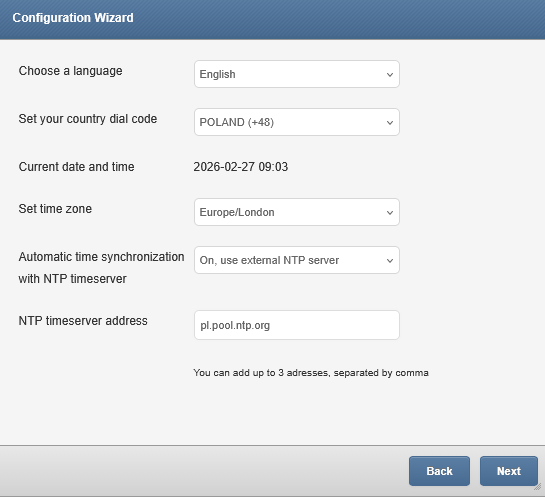
New SMSEagle devices are equipped with a built-in Configuration Wizard that guides the user through the initial setup process step by step. The wizard is launched automatically on first login and covers the most important configuration areas: SIM card setup, time zone, and user password change. The wizard can be skipped and accessed again later from the Settings menu.
STEP 6: Installing custom SSL certificate and HTTPS-only (OPTIONAL)
Installing your own SSL certificate
SMSEagle device comes with a self-signed SSL certificate. Follow the instructions in the chapter SSL Certificate and HTTPS Redirection if you want to install your own SSL certificate or a free Let’s Encrypt SSL certificate.
Using HTTPS only
By default, SMSEagle web-GUI can be accessed via HTTP or HTTPS. For improved security we recommend using HTTPS. If you would like to redirect HTTP > HTTPS, follow instructions in the chapter SSL Certificate and HTTPS Redirection.
STEP 7: Reboot the device
Go to Settings > Maintenance Tab. Press Reboot button.