

Configuration Wizard
The first time you sign in to a freshly set-up SMSEagle device, a configuration wizard walks you through the settings needed before the gateway goes live. The wizard has four steps; you cannot access the rest of the web interface until it is completed.
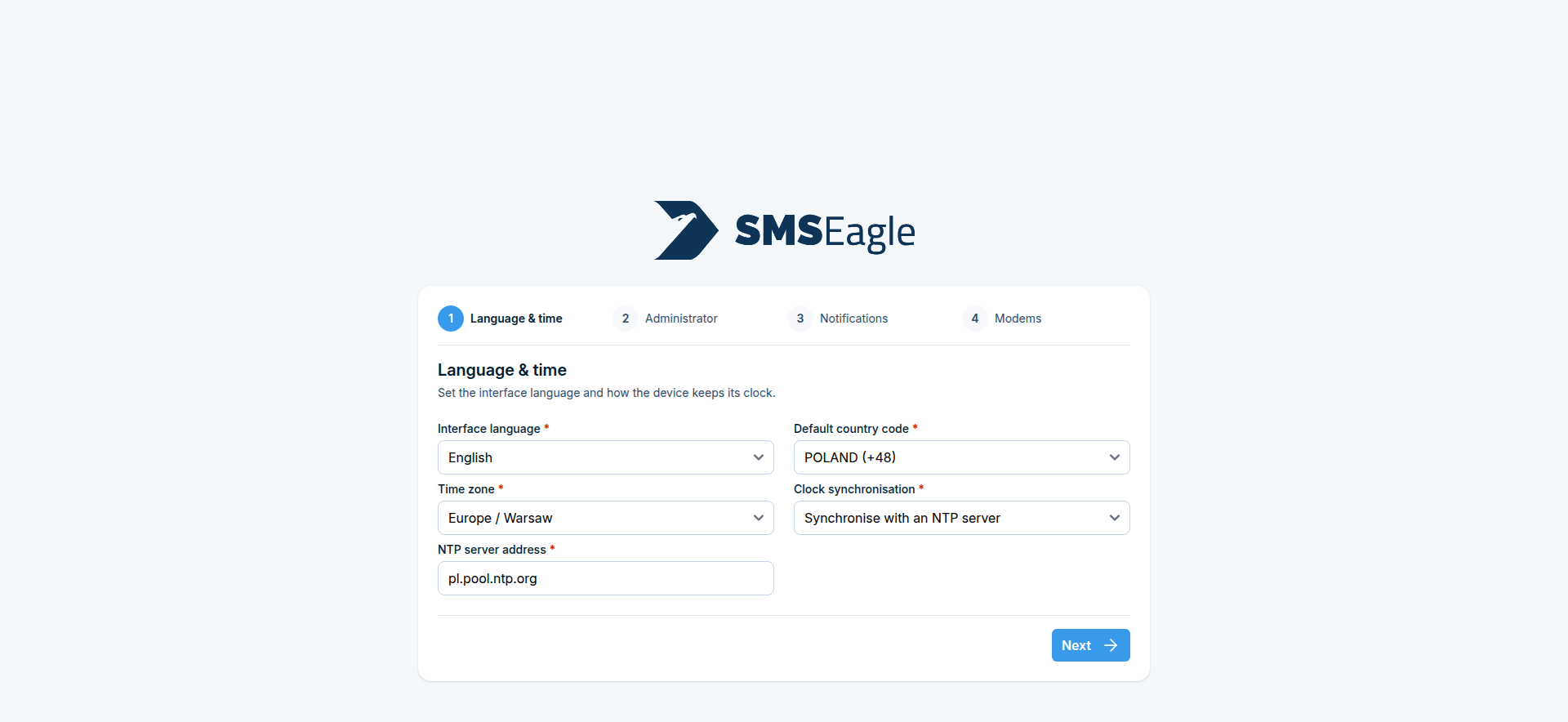
Step 1: Language & time
Set the interface language, the default country code (used when a phone number is entered without one), the device time zone, and clock synchronization. If you choose Synchronise with an NTP server, also enter the NTP server address.
Step 2: Administrator account
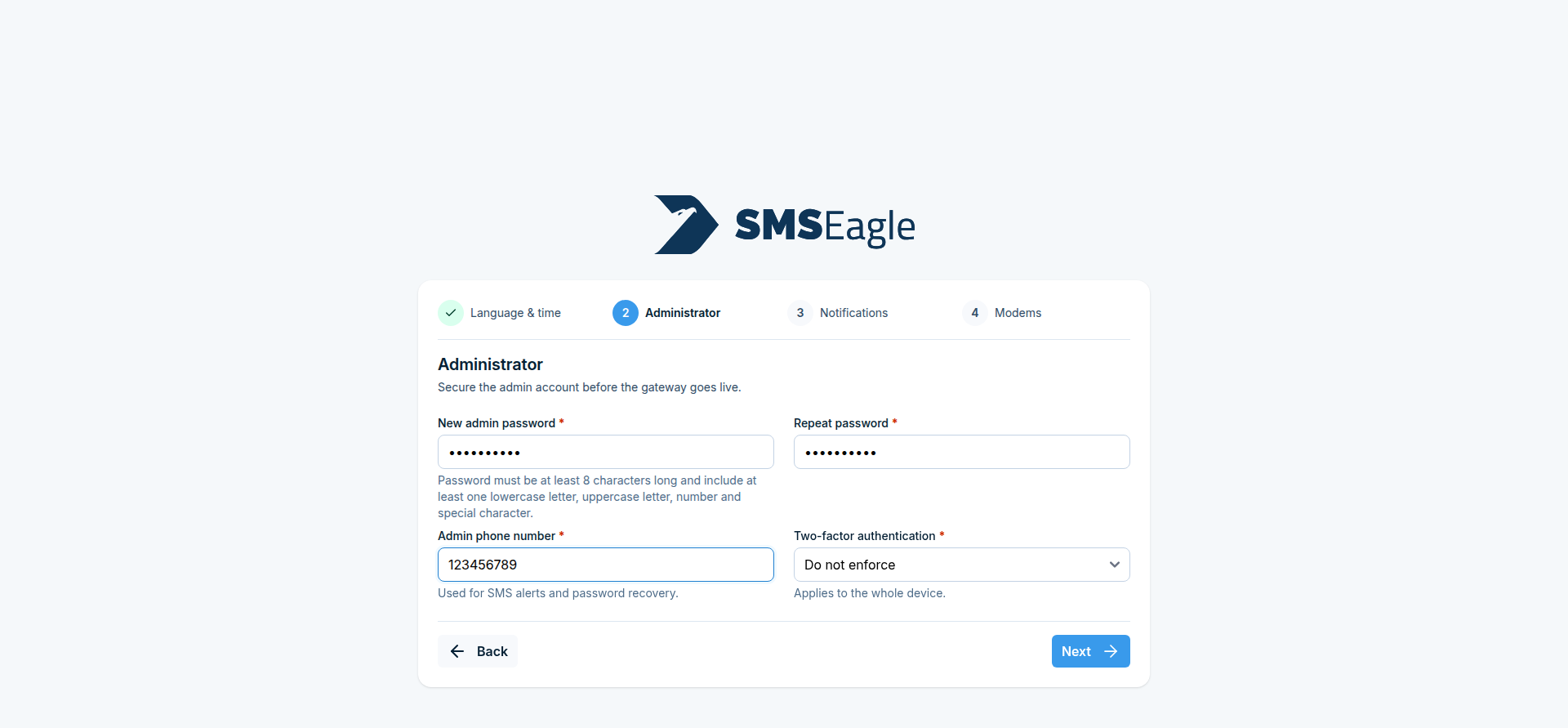
Secure the admin account before the gateway goes live:
Field |
Description |
|---|---|
New admin password / Repeat password |
Must be at least 8 characters long and include a lowercase letter, an uppercase letter, a number, and a special character |
Admin phone number |
Used for SMS alerts and password recovery |
Two-factor authentication |
Do not enforce, Enforce for all users, or Enforce for new users - applies to the whole device, see Multi-Factor Authentication (MFA) |
Changing the admin password here signs you out; sign back in with the new password to continue the wizard.
Step 3: Notifications
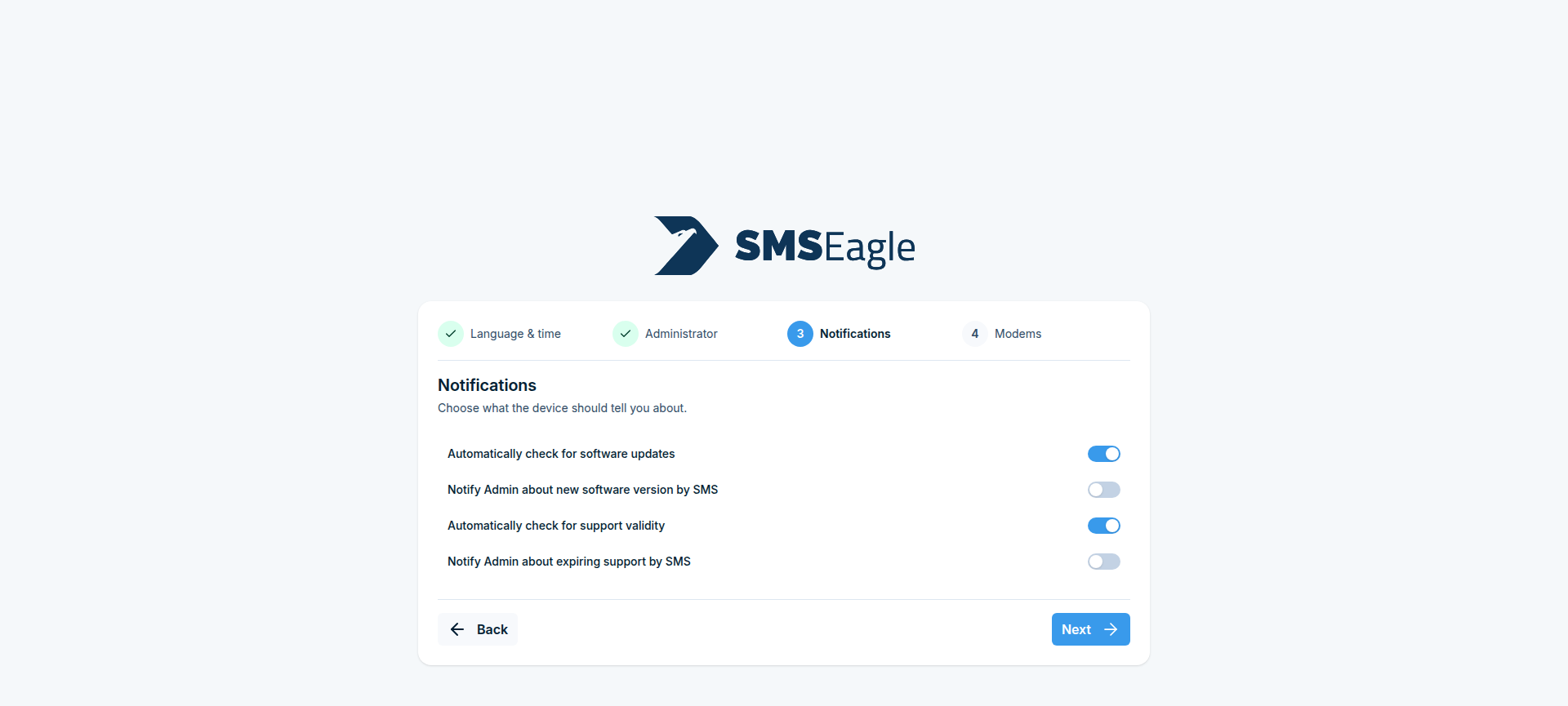
Choose what the device should tell you about:
Automatically check for software updates, and optionally notify the admin by SMS when a new version is available
Automatically check for support validity, and optionally notify the admin by SMS when support is about to expire
Step 4: Modems
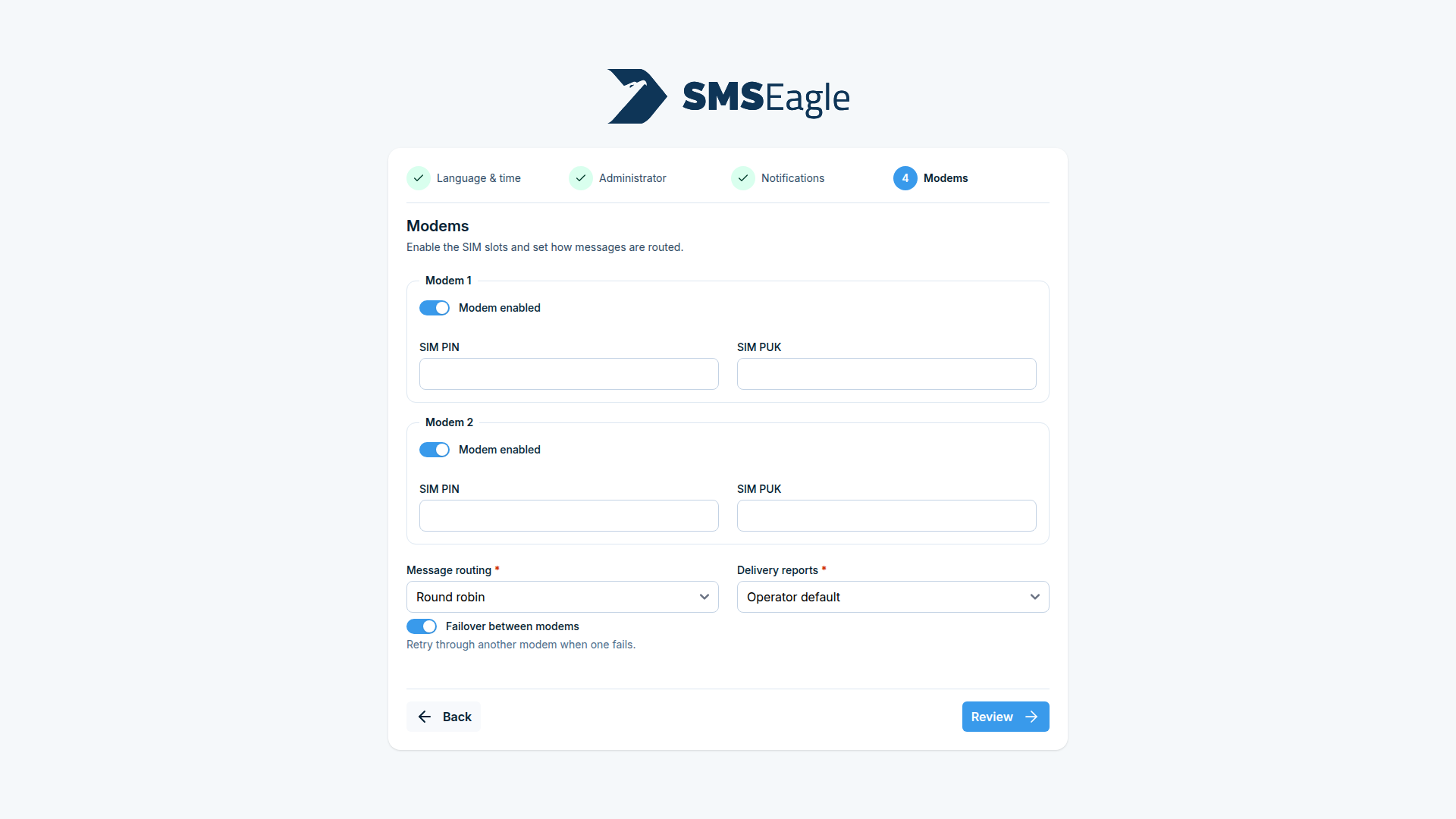
For each built-in modem (Modem 1, Modem 2 on multi-modem devices), enable it and, if required, enter its SIM PIN and SIM PUK. Then set:
Message routing - Round robin, SIM 1 as master, or SIM 2 as master (see Multimodem selection strategy)
Delivery reports - Operator default, Always request, or Never request
Failover between modems - retry through the other modem when one fails
Review your settings and finish the wizard to reach the normal dashboard.