

Messages
This chapter covers the Messages section of the web interface - where you read, compose, and manage every channel’s conversations. Configuring a channel (enabling WhatsApp, connecting SMTP, setting up modems) is covered separately in Settings; this chapter is about using a channel day to day.
SMS (Conversations)
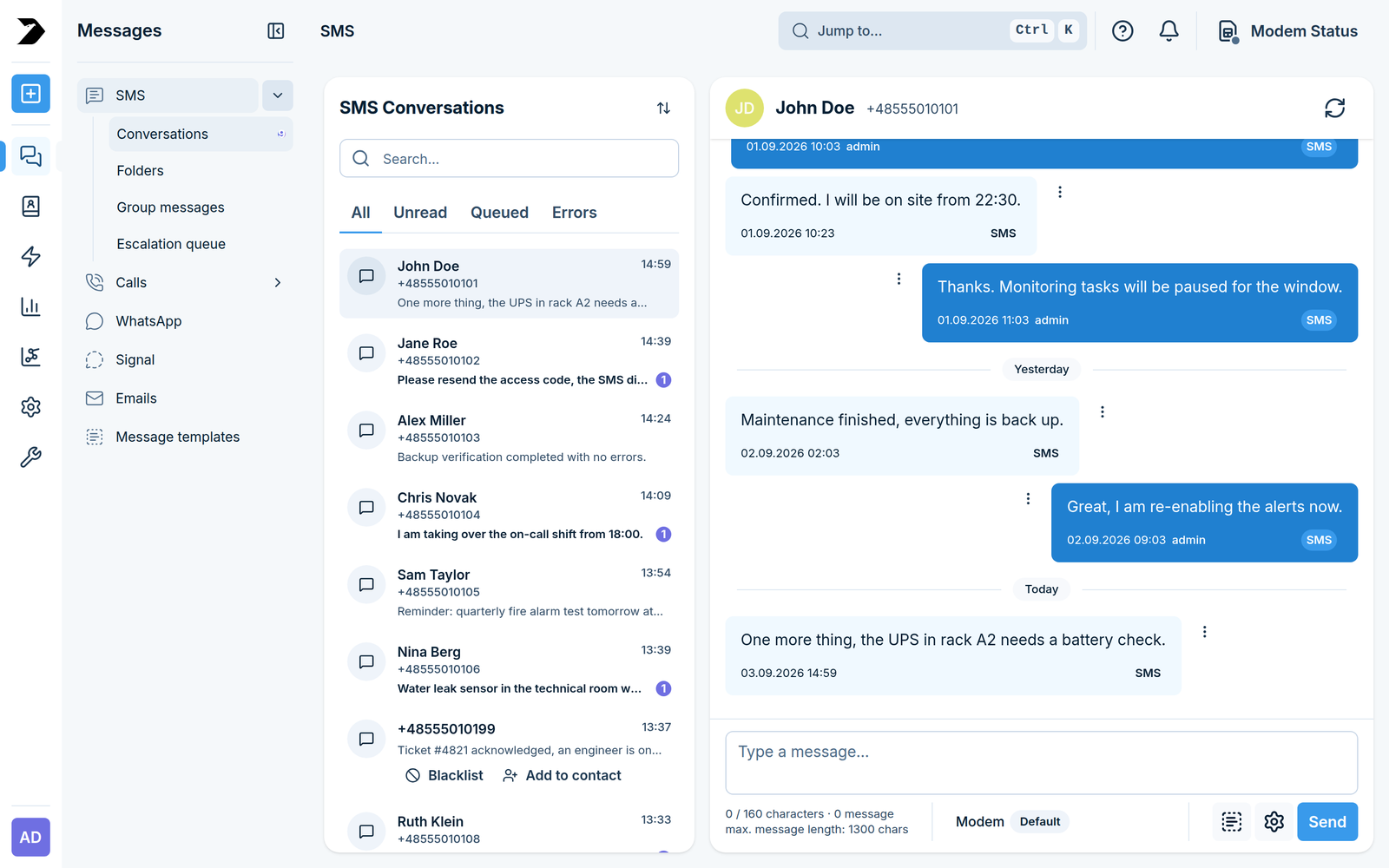
Messages > SMS > Conversations (/messages/sms/) is the main SMS/MMS inbox: one thread per
phone number, newest first.
Filter with the All, Unread, Queued, and Errors tabs.
Open a thread to read the full history and reply from the box at the bottom.
MMS attachments (images, files) appear inline in the thread once a modem has MMS configured - see MMS in Settings.
Compose a new message with the + button at the top of the left rail, or the Compose quick action on the Dashboard.
Composing a message
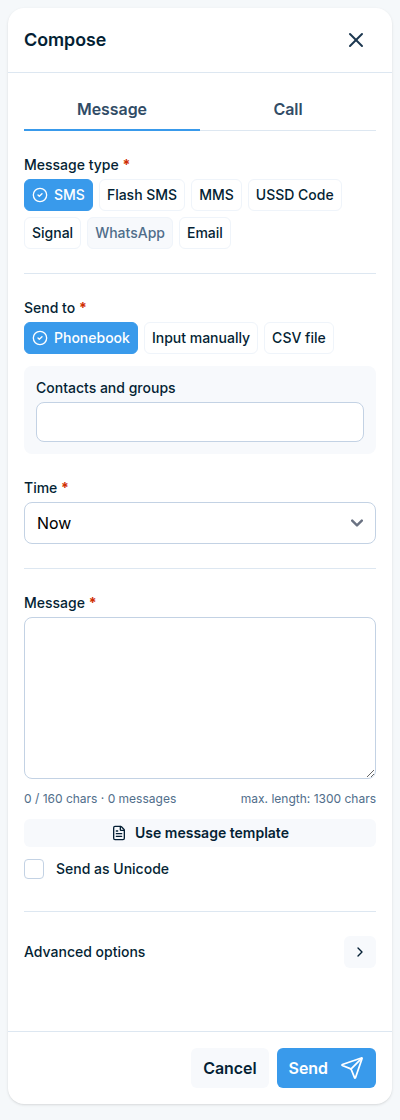
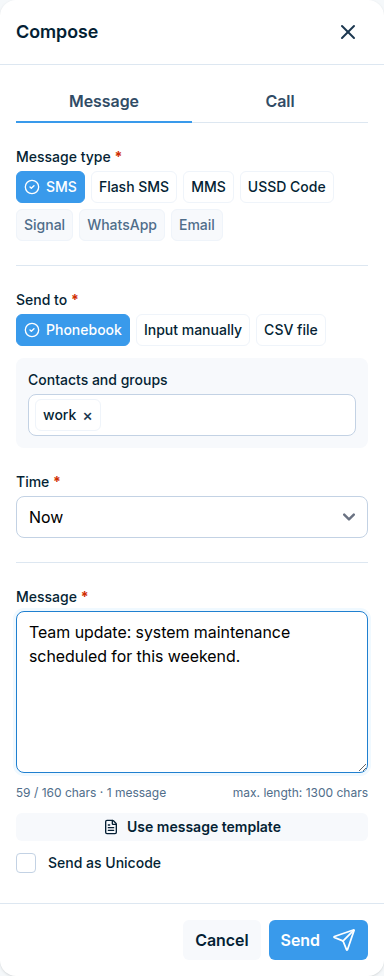
Compose opens as a panel on the right, with a Message and a Call tab. The Message tab holds:
Message type - SMS, Flash SMS, MMS, USSD Code, Signal, WhatsApp, or Email. A channel that is not configured on this device is greyed out, see Settings.
Send to - pick recipients from the Phonebook (contacts and groups), enter them with Input manually, or upload a CSV file.
Time - send Now, At date and time, After delay, or Between hours.
Message - the text, with a live counter of characters and of how many SMS parts they add up to. Use message template fills it from a saved template, and Send as Unicode switches the encoding for non-GSM characters.
Advanced options - further per-message settings.
Send queues the message; the thread appears in Conversations straight away.
Folders
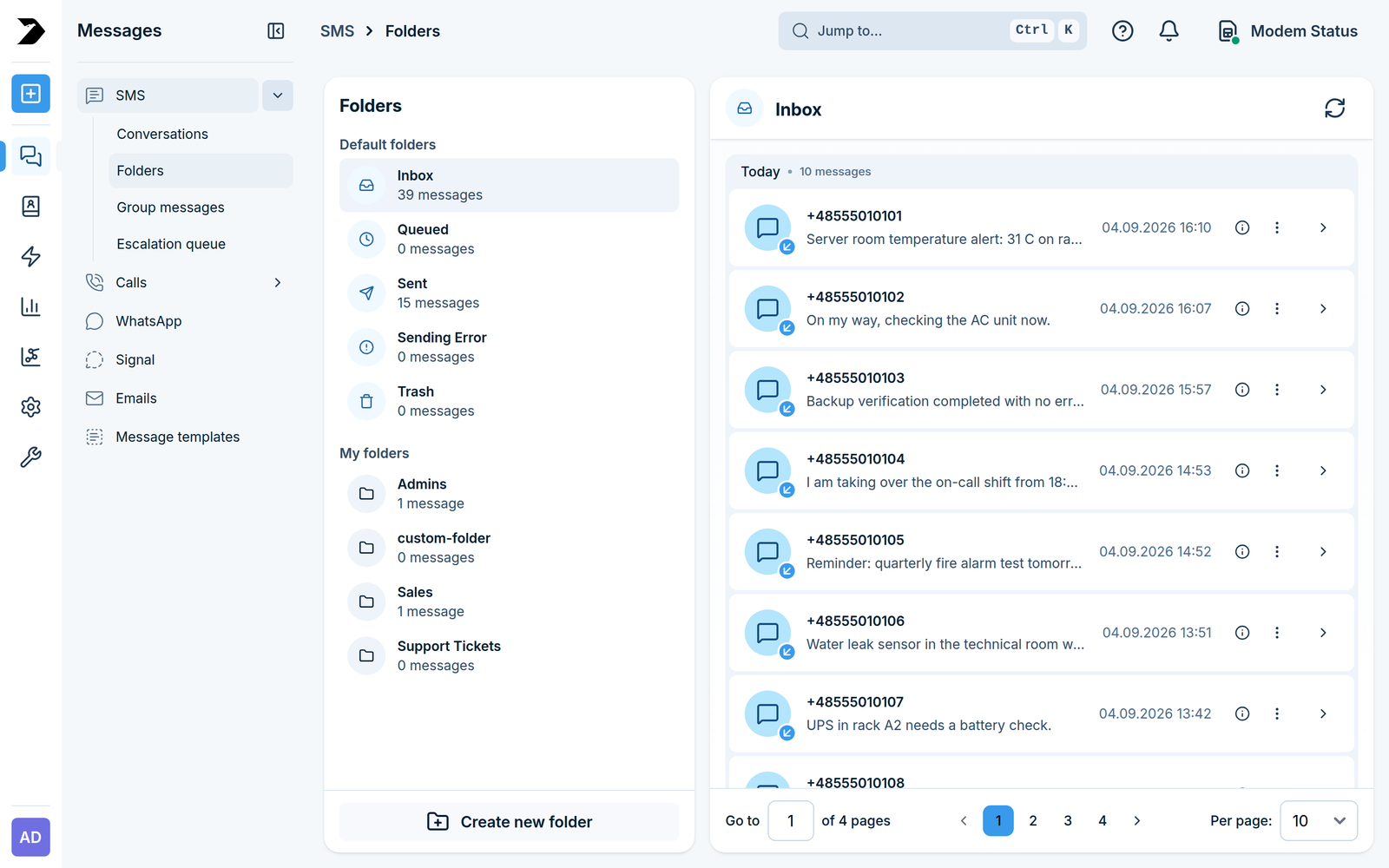
Messages > SMS > Folders (/messages/sms/folders/) lists the default folders (Inbox, Queued,
Sent, Sending Error, Trash) alongside any custom folders you created under My folders. Each
folder shows how many messages it holds. Click Create new folder to add your own - useful
together with Inbox Rules to automatically sort incoming
messages, and Cleanup Folders to prune them automatically.
Group messages
Messages > SMS > Group messages (/messages/sms/groups/) lists conversations you started by
sending to a Phonebook group rather than an individual number - one entry per group send, so you
can review who a group message went to without digging through individual threads.
Escalation queue
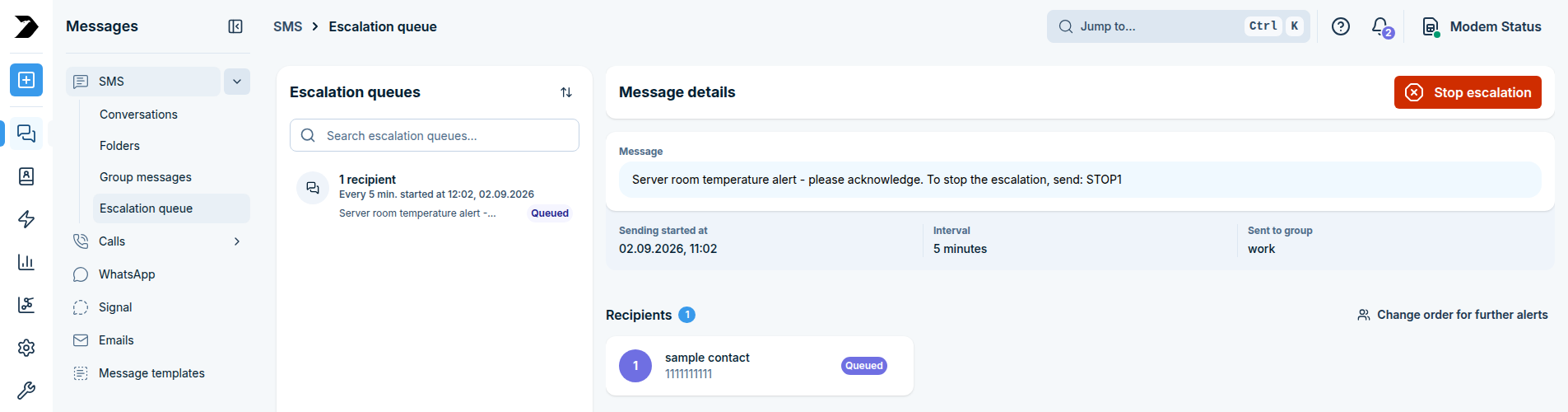
Messages > SMS > Escalation queue (/messages/sms/escalation/) shows every currently running
escalation - a message sent to an escalation group that is
still working its way down the contact list. Setting up an escalation group itself is covered in
Phonebook; this page is where you watch and control one that
is already in progress.
Each running escalation is listed with its message, when it started, and its interval. Opening one shows Message details: the message text, start time, interval, target group, and each recipient with a status of Delivered, Sending, Queued, or Sending error.
From this view you can:
Change order for further alerts - reorder the people who have not been contacted yet.
Stop escalation - cancel the whole escalation immediately; nobody else on the list is contacted.
An escalation also ends on its own when a recipient texts back the group’s stop word, or once the last person on the list has been contacted.
Calls
History
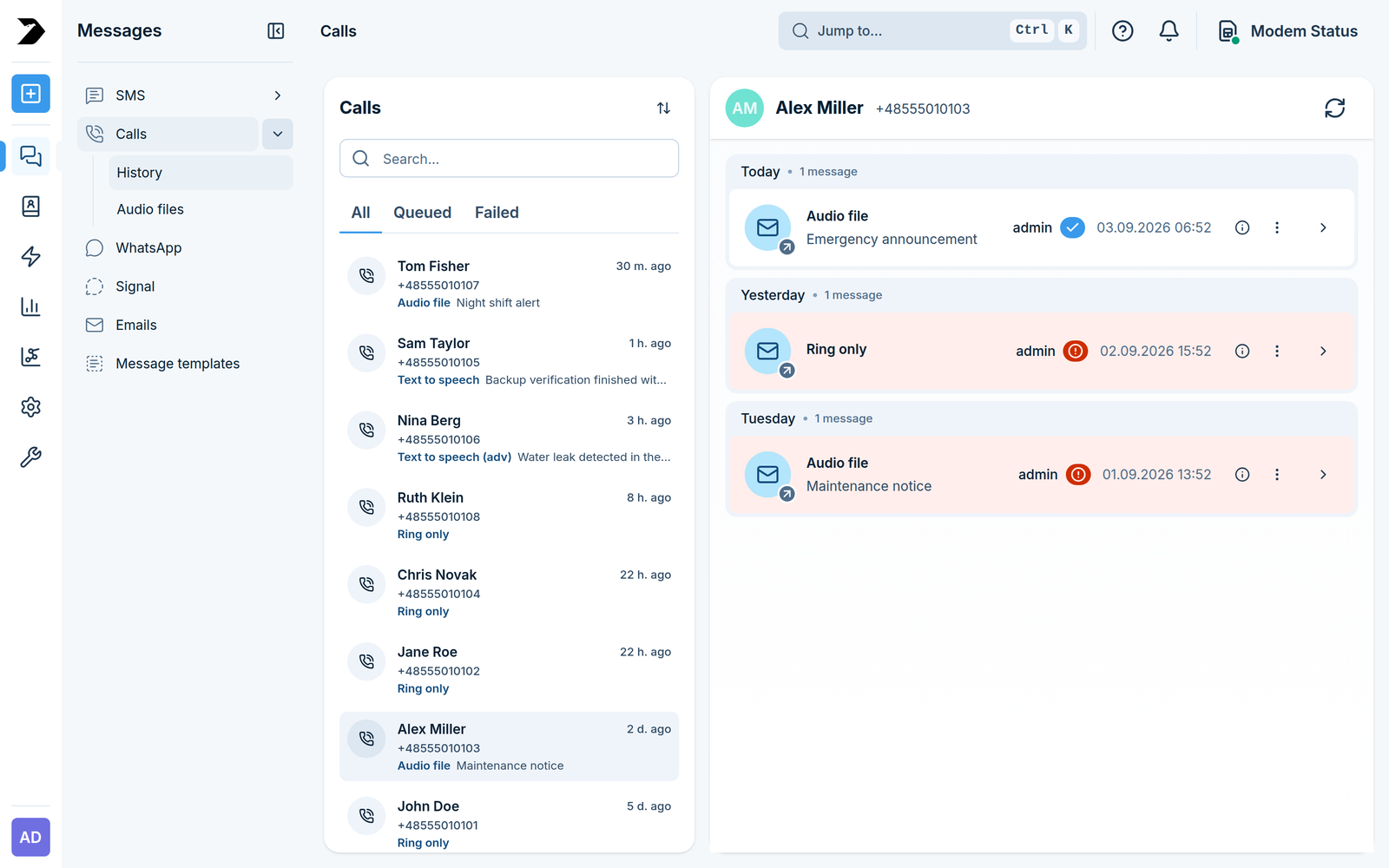
Messages > Calls > History (/messages/calls/) lists every call the device has placed,
grouped by phone number, newest first.
The All, Queued, and Failed tabs narrow the list down.
The search box finds calls by number, by contact name, or by the text that was read out.
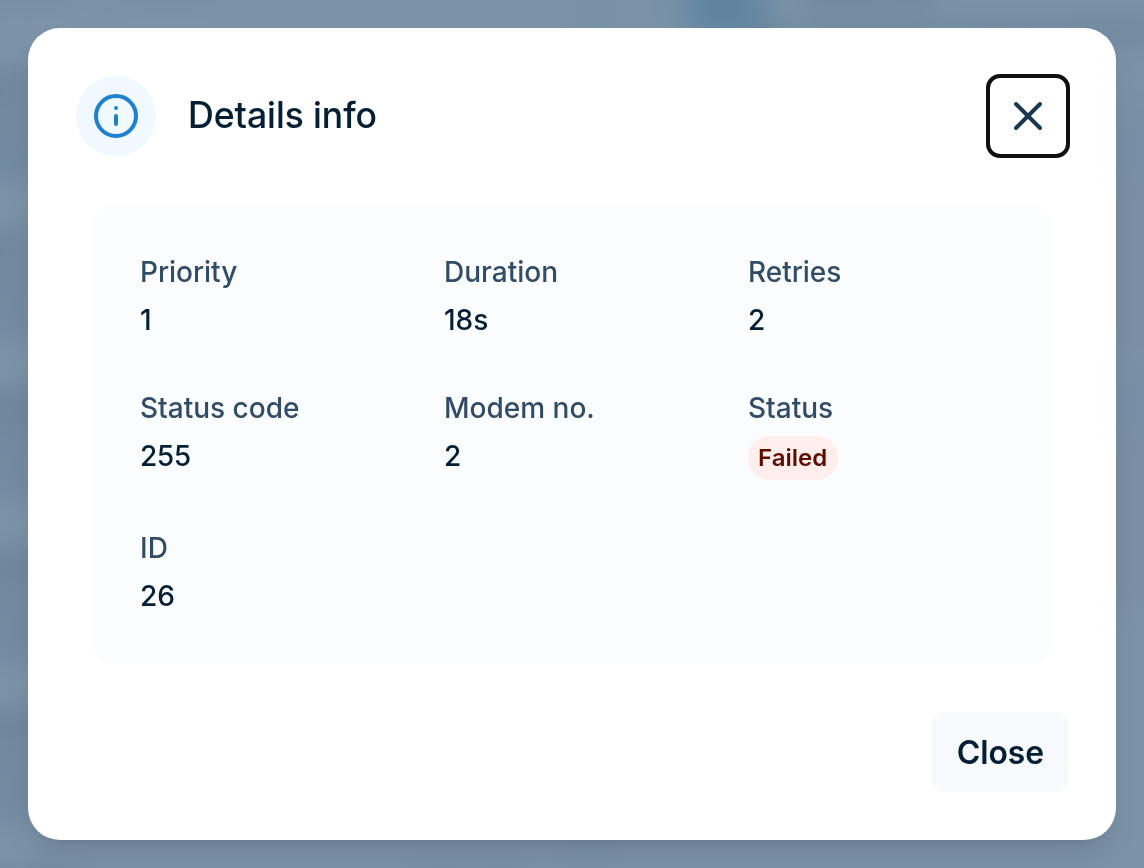
Opening a call shows its details: priority, duration, retries, status code, modem number, and ID. The status code is what to quote when asking support about a failed call.
Delete a single call, or select several and delete them together.
Calls are queued like messages: one scheduled for later, or held back by priority, stays in this list as Queued until it is placed. Placing a call (call types, voice models, and the Compose
Call panel) is covered in Calls under Settings.
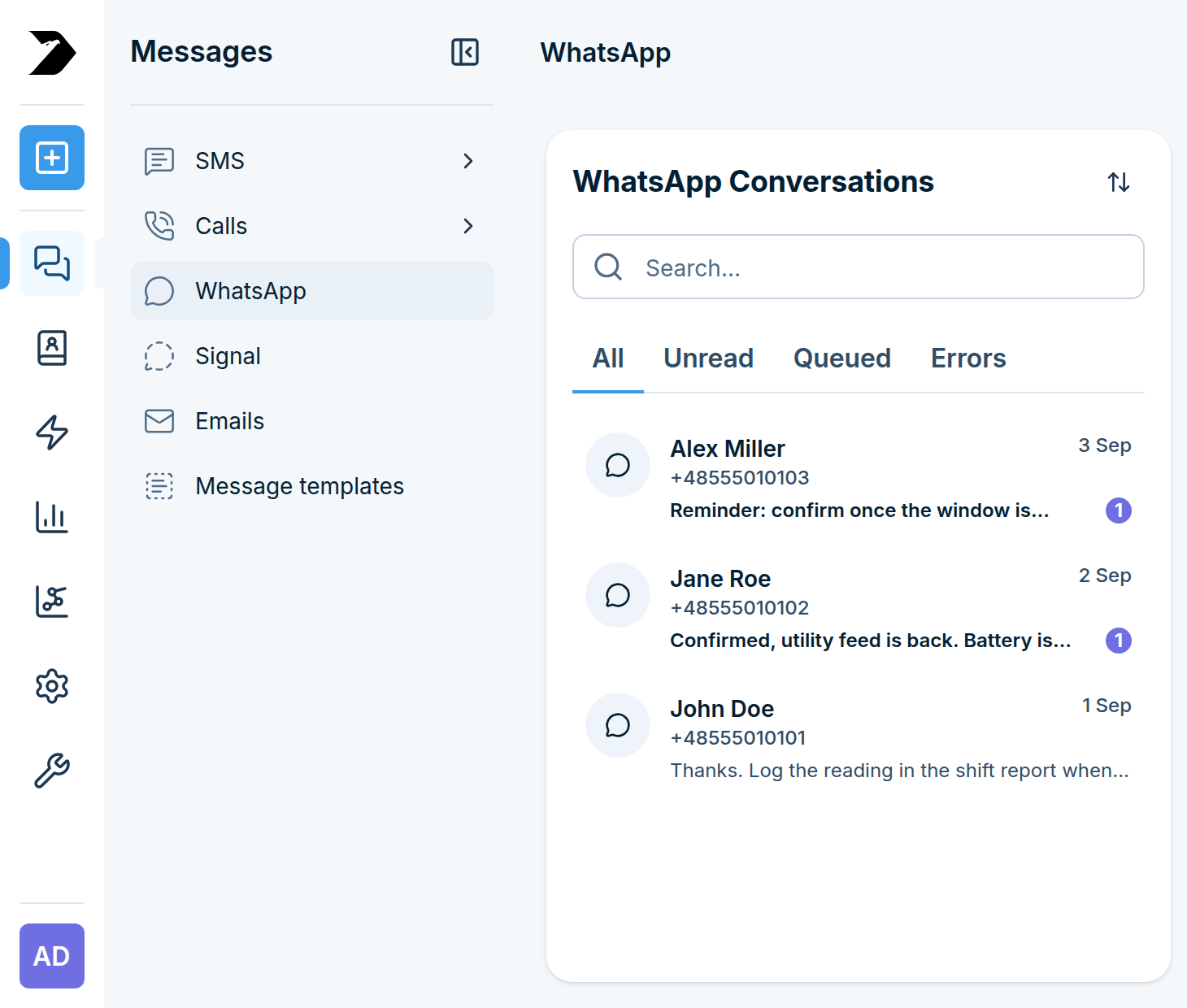
Messages > WhatsApp (/messages/whatsapp/) lists WhatsApp conversations, one per number,
newest first, once the channel has been linked under Settings.
Filter with the All, Unread, Queued, and Errors tabs.
Search and sort conversations by date or phone number.
Open a conversation and reply directly from the box at the bottom (maximum 1300 characters).
Delete a single conversation, or select several and delete them together.
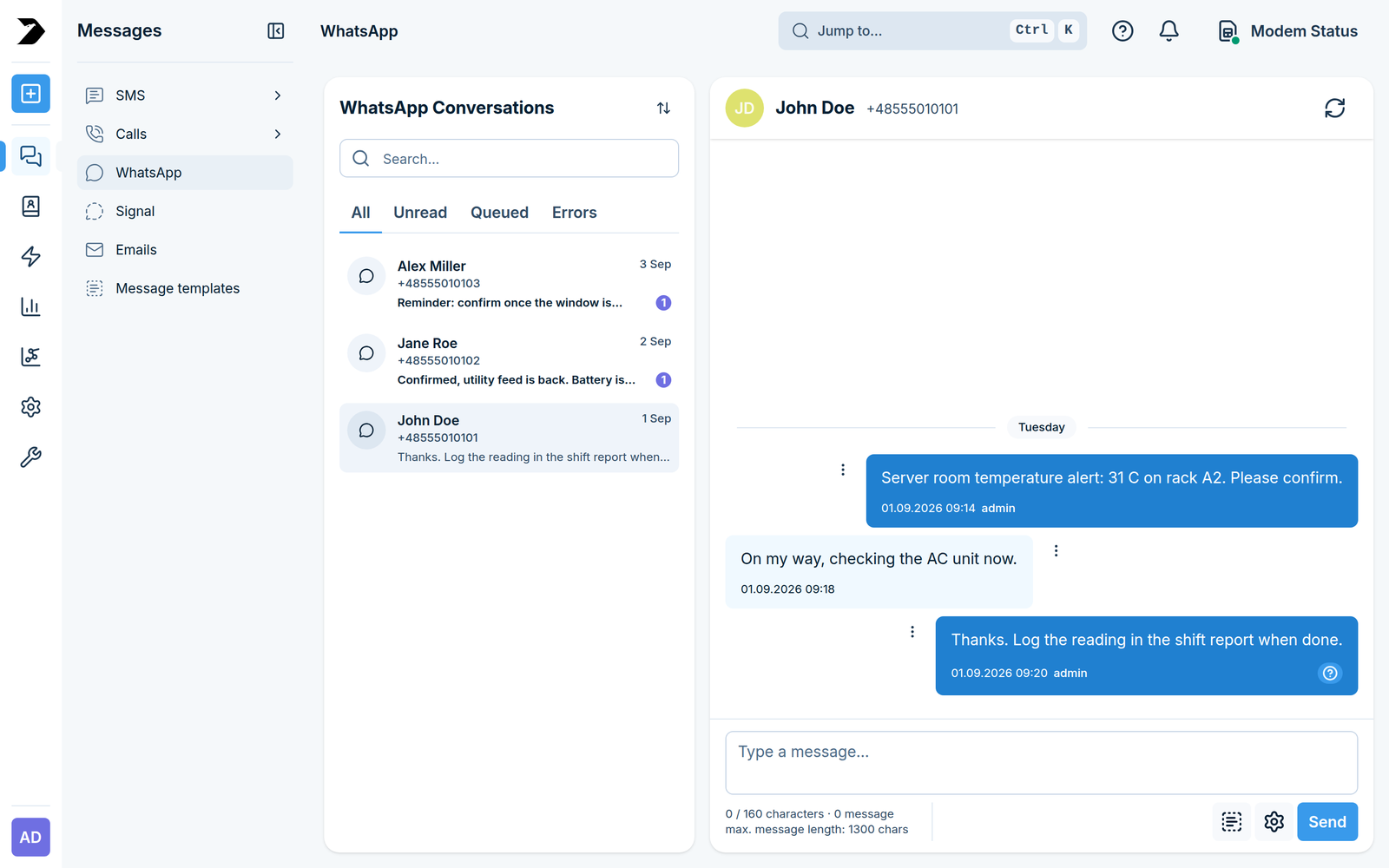
If WhatsApp has not been configured yet, this page shows a notice with a button that takes you straight to the WhatsApp settings. To send a new WhatsApp message, open Compose, tick WhatsApp as the message type, and write as usual.
Only messages received after the device was linked appear here.
Signal
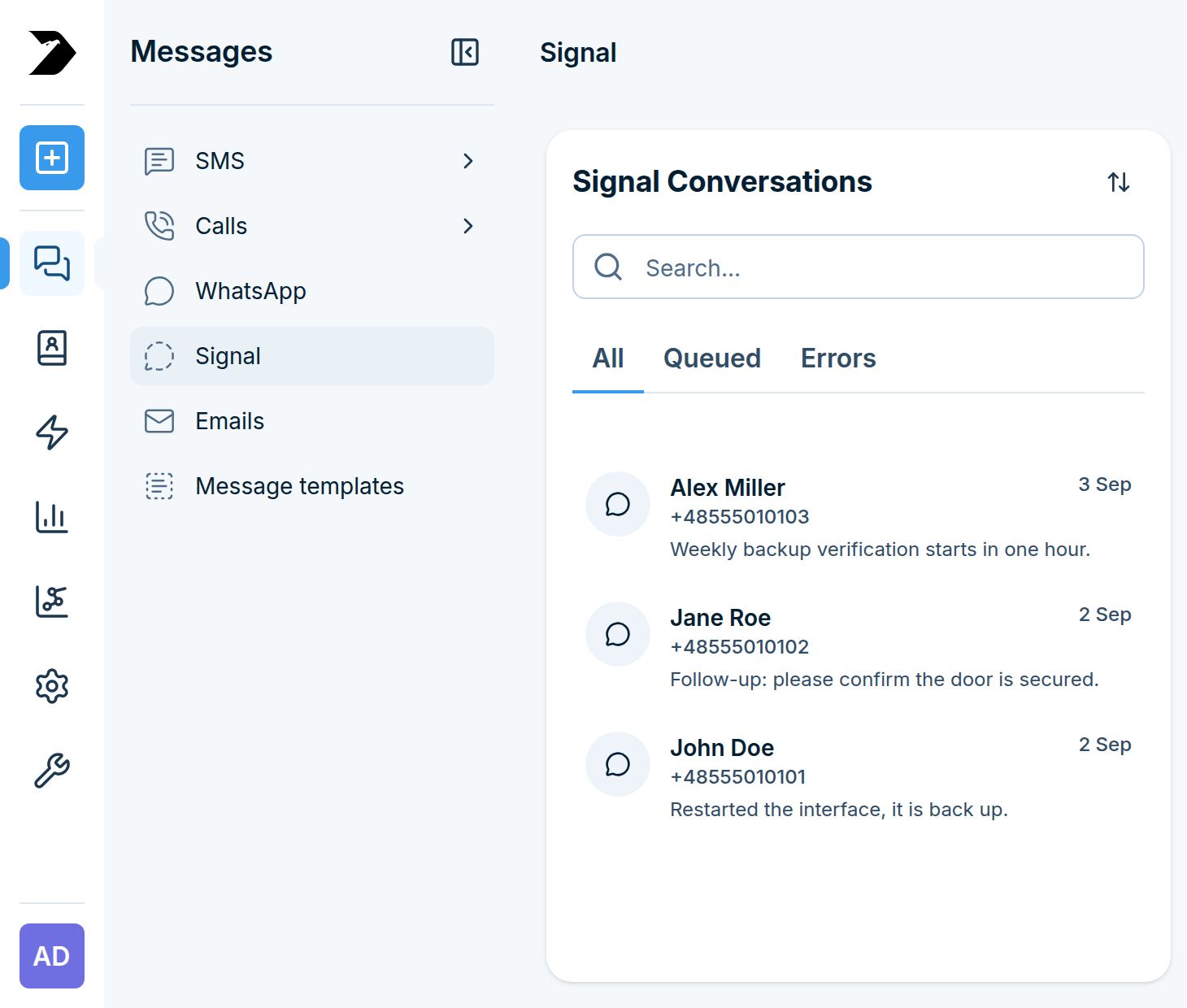
Messages > Signal (/messages/signal/) works the same way as WhatsApp above, once a number
has been registered under Settings: one conversation per number, the
All / Queued / Errors filters, and reply from the box at the bottom (maximum 1300
characters). Signal has no Unread tab.
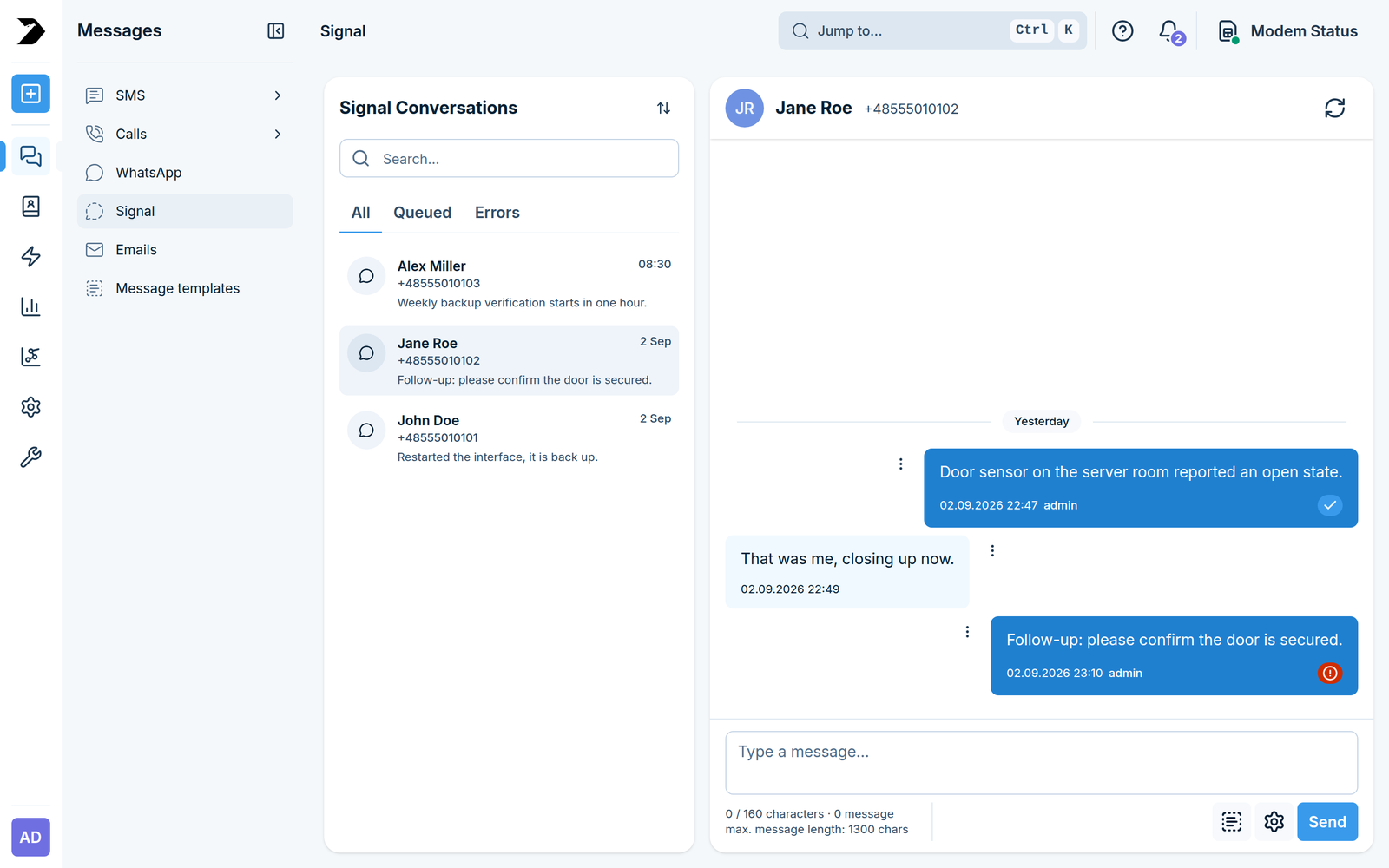
To send a new Signal message, open Compose, tick Signal as the message type, and write as usual. Only messages received after the service was enabled appear here.
Emails
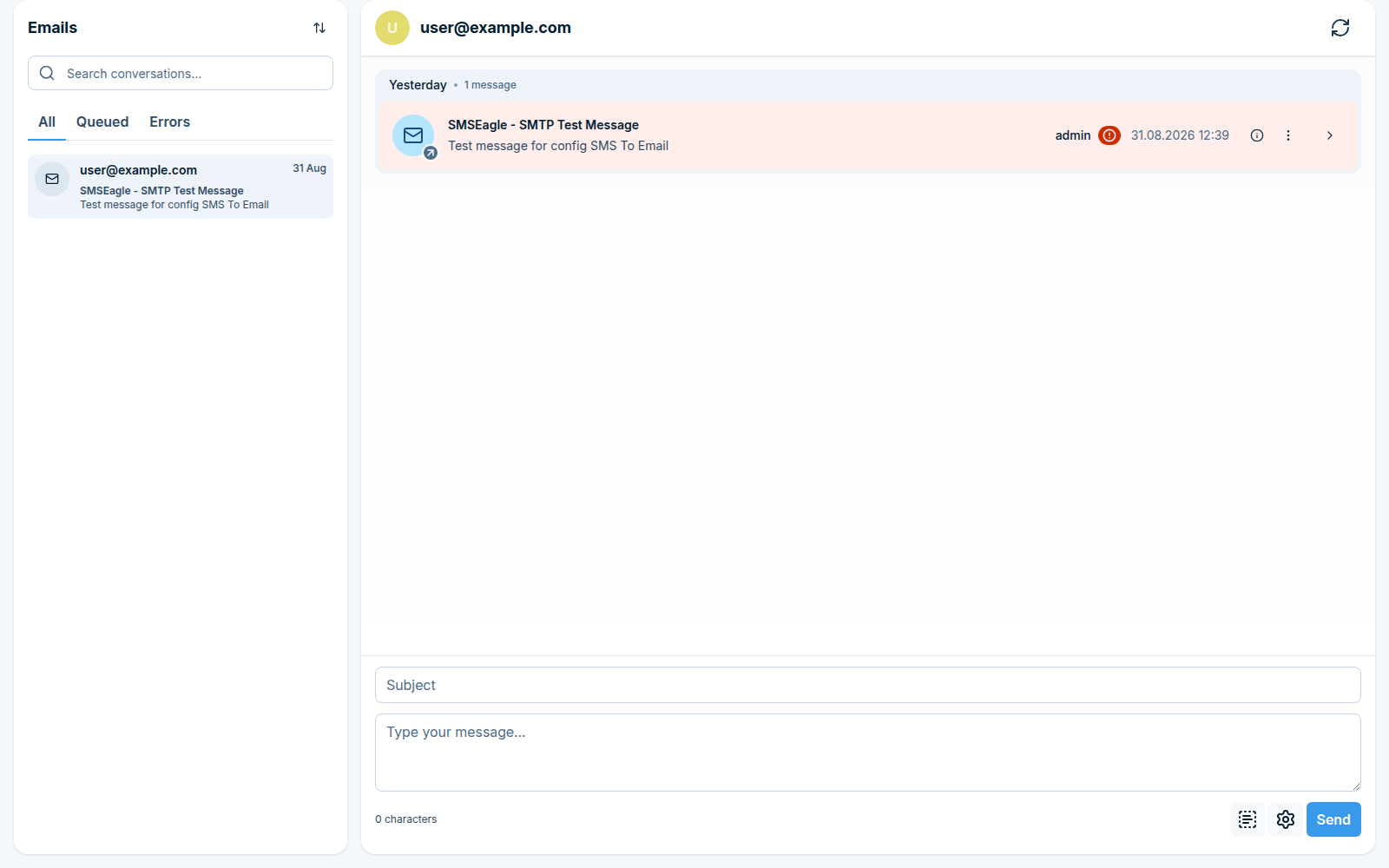
Messages > Emails (/messages/email/) lists email conversations, one thread per address,
newest first, with All, Queued, and Errors filters - the same conversation-style view
as SMS, WhatsApp, and Signal, for mail sent or received through
SMS to Email and Email to SMS.
Message templates
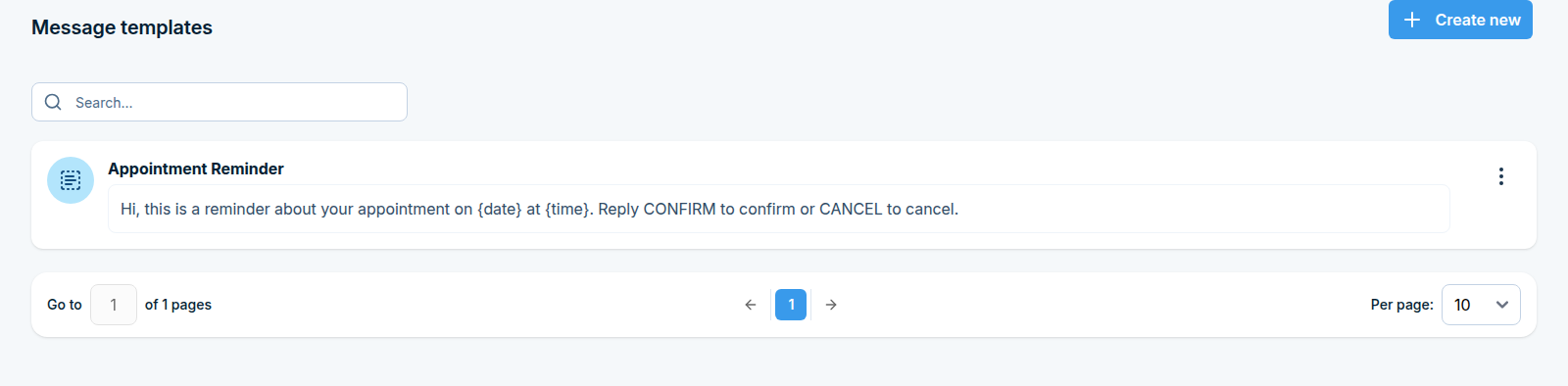
Messages > Message templates (/messages/templates/) stores reusable message text for
Compose, so frequent messages don’t need retyping every time.
Click Create new, give the template a Template name, and write the Message content. Saved templates can then be picked from Compose instead of typing the message from scratch.