

Reports & Statistics
This chapter covers the Reports & Statistics section of the web interface - exporting message data as a one-off report, or scheduling reports to be emailed automatically.
Reports
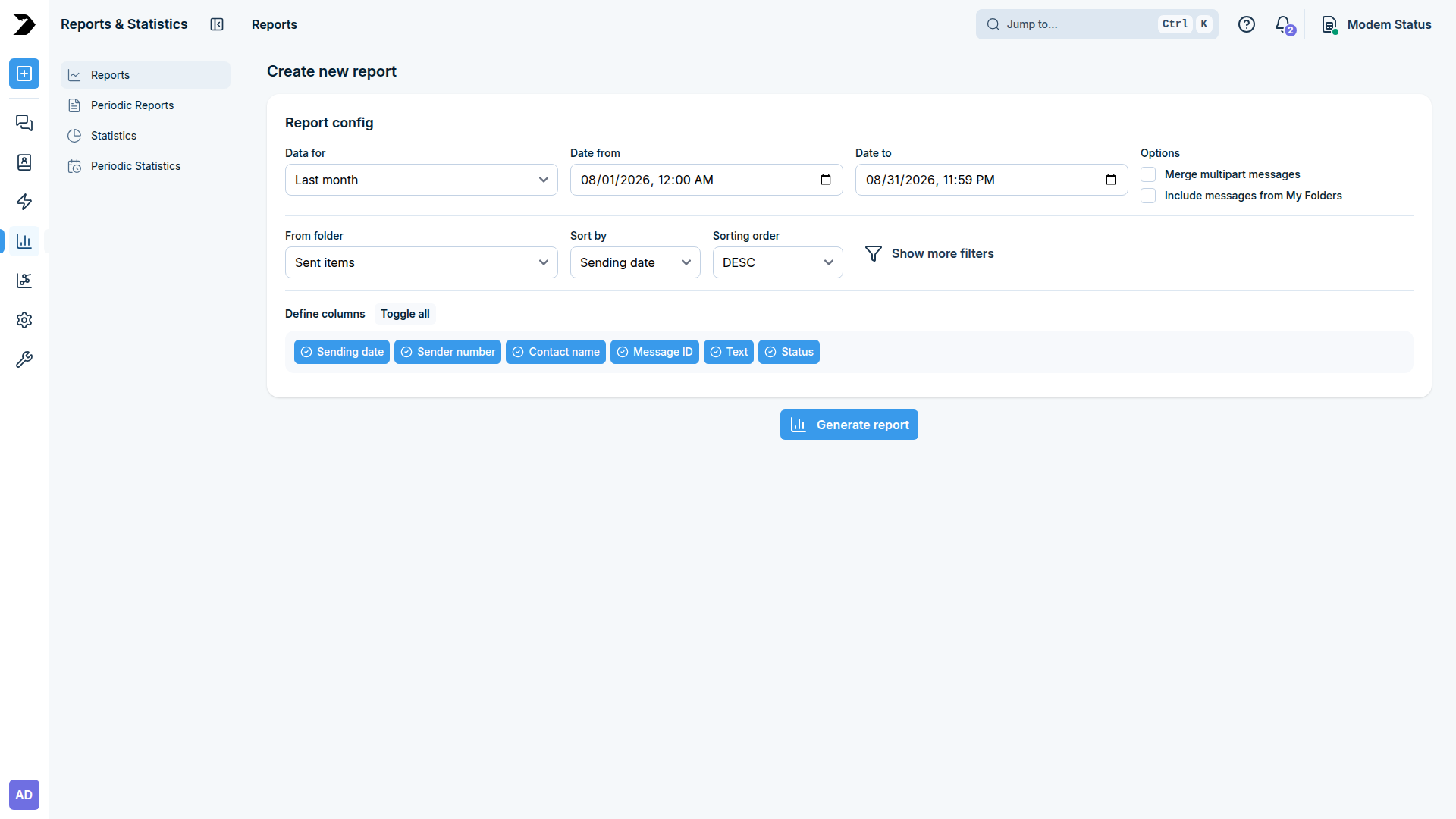
Reports & Statistics > Reports (/reports/) builds a one-off report of your message history.
Under Report config, choose the time range with Data for (a ready-made range such as Today, Last 7 days, or This month, or Custom range with explicit Date from / Date to fields).
Under Options:
Option |
What it does |
|---|---|
Merge multipart messages |
Combines a long SMS split into several parts back into one row. |
Include messages from My Folders |
Also includes messages that were moved into a custom folder. |
From folder |
Which folder to report on: Sent items, Inbox, or Outbox. |
Sort by / Sorting order |
Column to sort by (sending date, sender number, contact name, message ID, text, or status) and direction (ASC/DESC). |
Click Show more filters for additional filtering, and use Define columns to choose which columns appear in the generated report - Toggle all selects or clears every column at once.
Click Generate report to produce it.
Periodic Reports
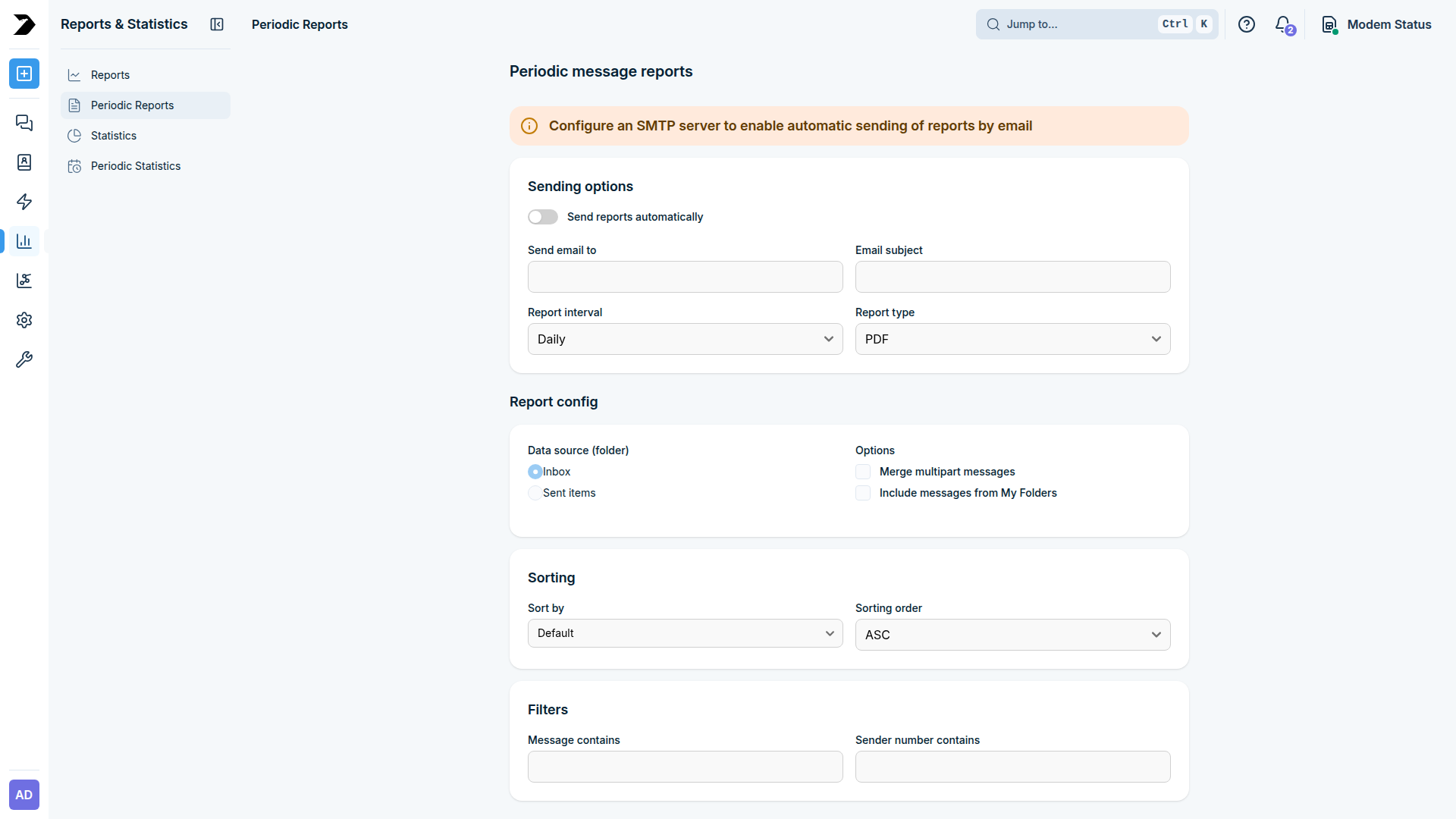
Reports & Statistics > Periodic Reports (/reports/periodic-reports) schedules a report to be
generated and emailed automatically on a recurring basis, instead of running one by hand each
time.
This requires a working SMTP Configuration - the page shows a reminder to configure one if it is missing.
Under Sending options, turn on Send reports automatically and fill in:
Field |
What it does |
|---|---|
Send email to |
The recipient address for the generated report. |
Email subject |
The subject line of the email. |
Report interval |
Daily, Weekly, or Monthly. |
Report type |
PDF or CSV. |
Under Report config, choose the Data source (folder) (Inbox or Sent items), the same Merge multipart messages / Include messages from My Folders options as a one-off report, and Sorting (sort field and ASC/DESC order).
Under Filters, narrow the report down with Message contains and/or Sender number contains.
Under Output, use Select table columns (with a Toggle all shortcut) to choose which columns the generated file includes: receiving date, sender number, contact name, SMS Center Number, message ID, text, read status, and modem ID.
Click Save configuration.
Statistics
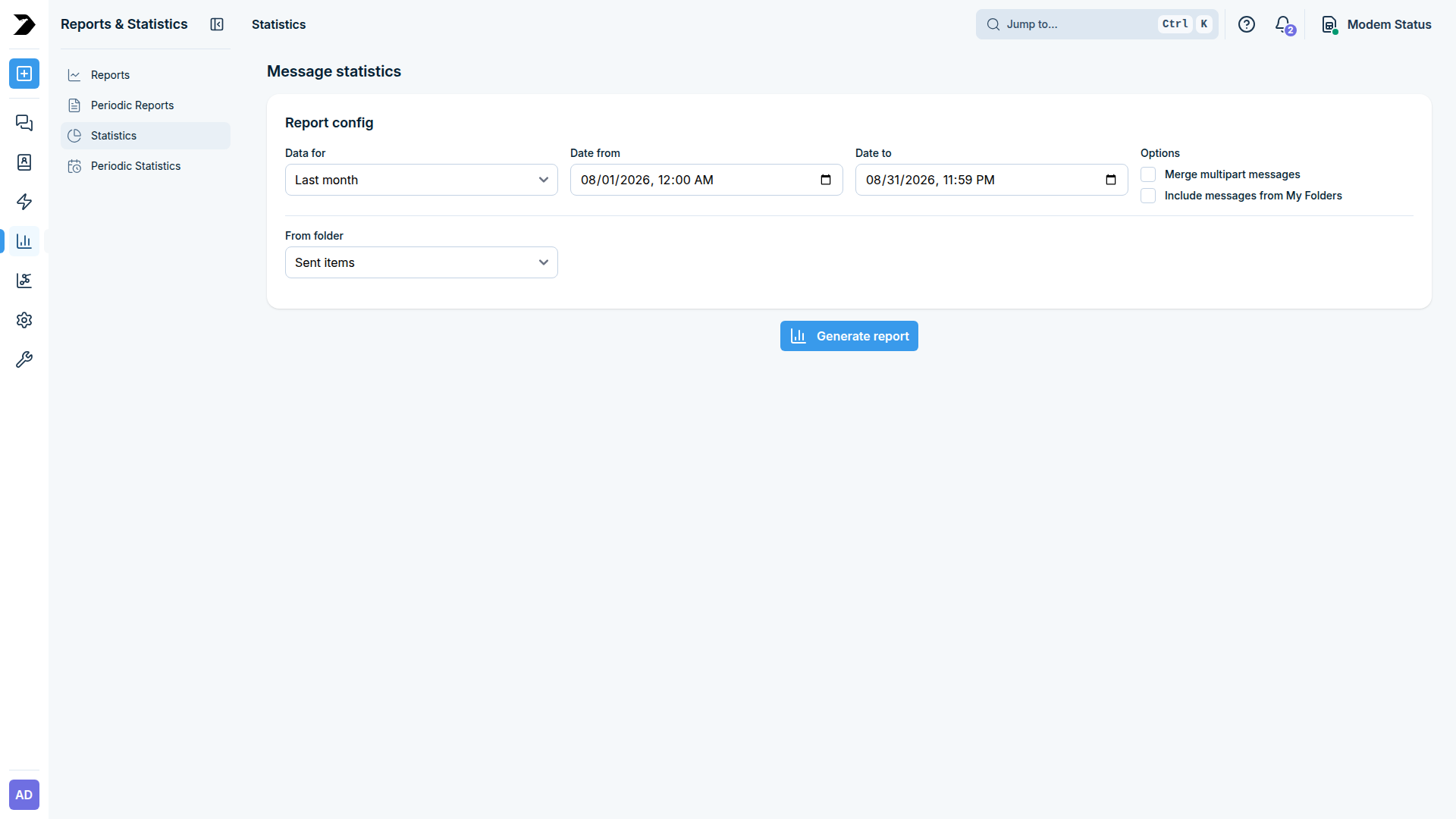
Reports & Statistics > Statistics (/reports/statistics) works the same way as
Reports above - the same Data for time-range picker and Merge multipart
messages / Include messages from My Folders / From folder options - but produces
aggregate traffic statistics instead of a row-per-message export. Click Generate report to
produce it.
Periodic Statistics
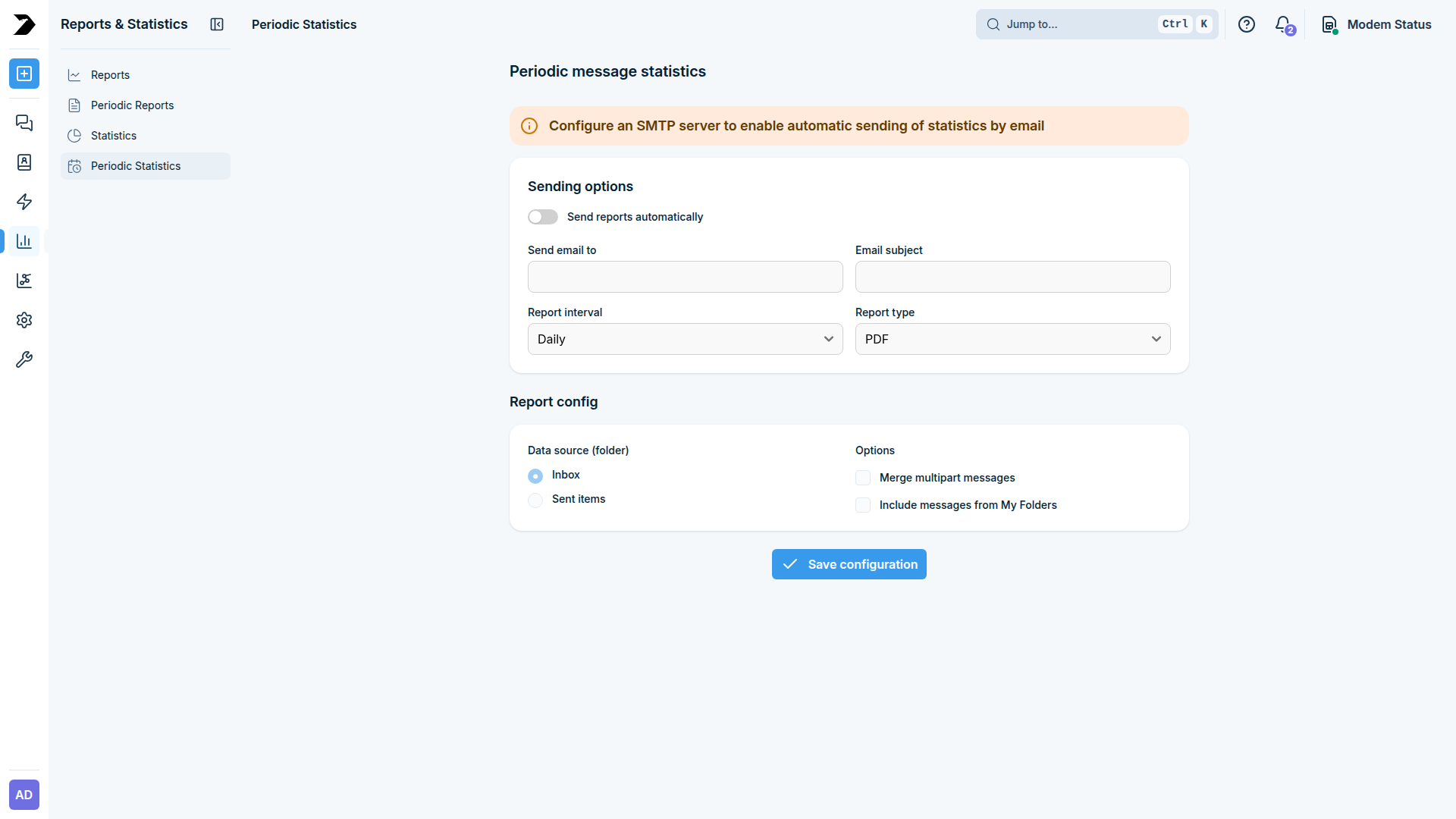
Reports & Statistics > Periodic Statistics (/reports/periodic-statistics) schedules the
statistics report above to be generated and emailed automatically, the same way
Periodic Reports does for the row-per-message export: it needs a working
SMTP Configuration, and offers the same Sending options
(recipient, subject, Daily / Weekly / Monthly interval, PDF / CSV report type) plus a
Report config section (data source folder, merge multipart messages, include My Folders).
Click Save configuration.