

Web Interface Overview
This chapter is a quick tour of the SMSEagle web interface itself, before the individual features covered in the rest of this manual.
Signing in
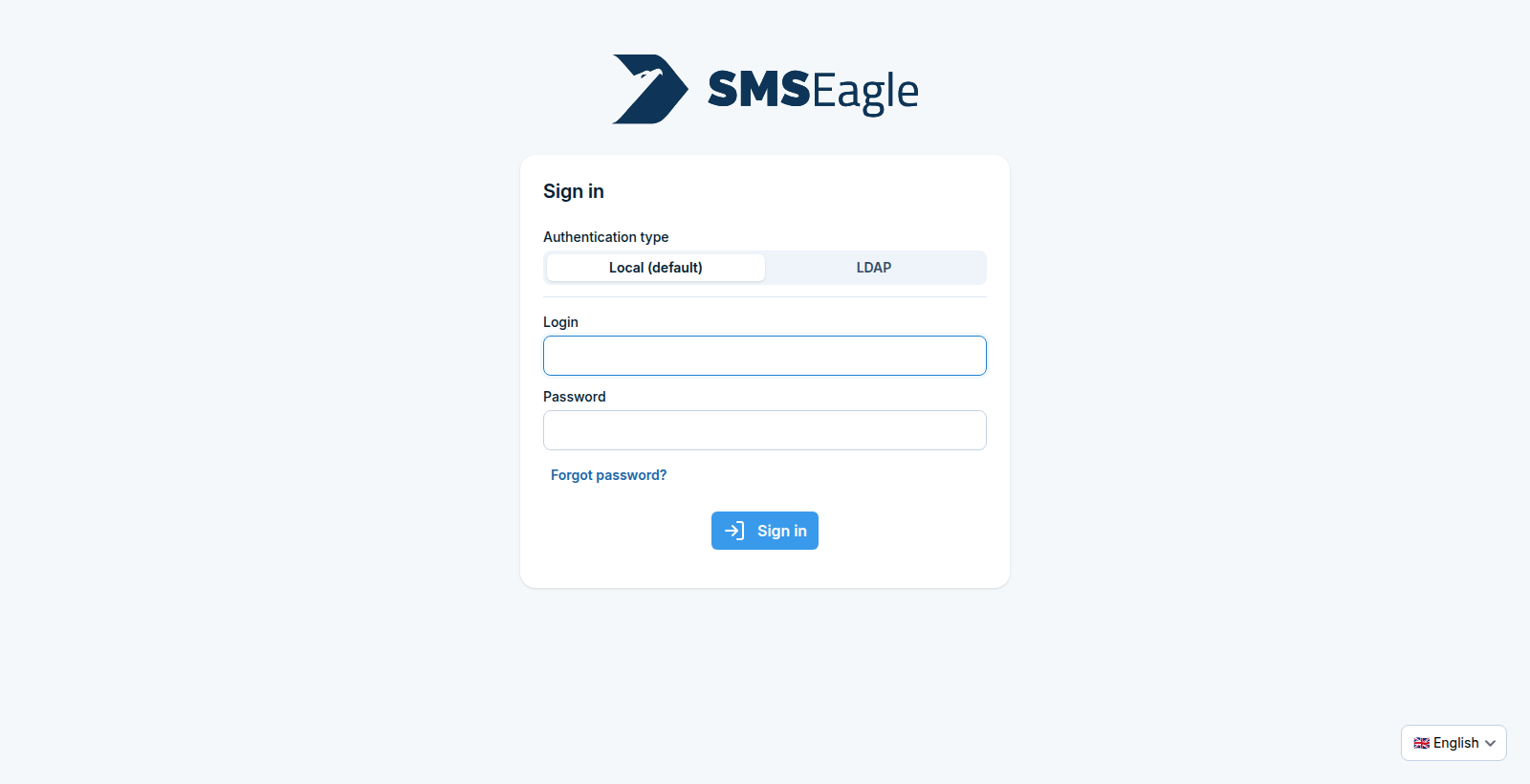
Open the device’s IP address or hostname in a browser and sign in with your login and password. If Multi-Factor Authentication has been enforced device-wide (see MFA), you will also be asked for a one-time code.
Authentication type decides where the credentials are checked: Local (default) against the device’s own user list, or LDAP against a directory server, which an administrator configures first under LDAP.
Forgot password? sends recovery instructions to the phone number on the account by SMS. Identify yourself there with either your username or that phone number.
The selector in the bottom-right corner sets the language of the sign-in page. The language of the interface after signing in comes from your own account, see Personal account settings.
Interface layout
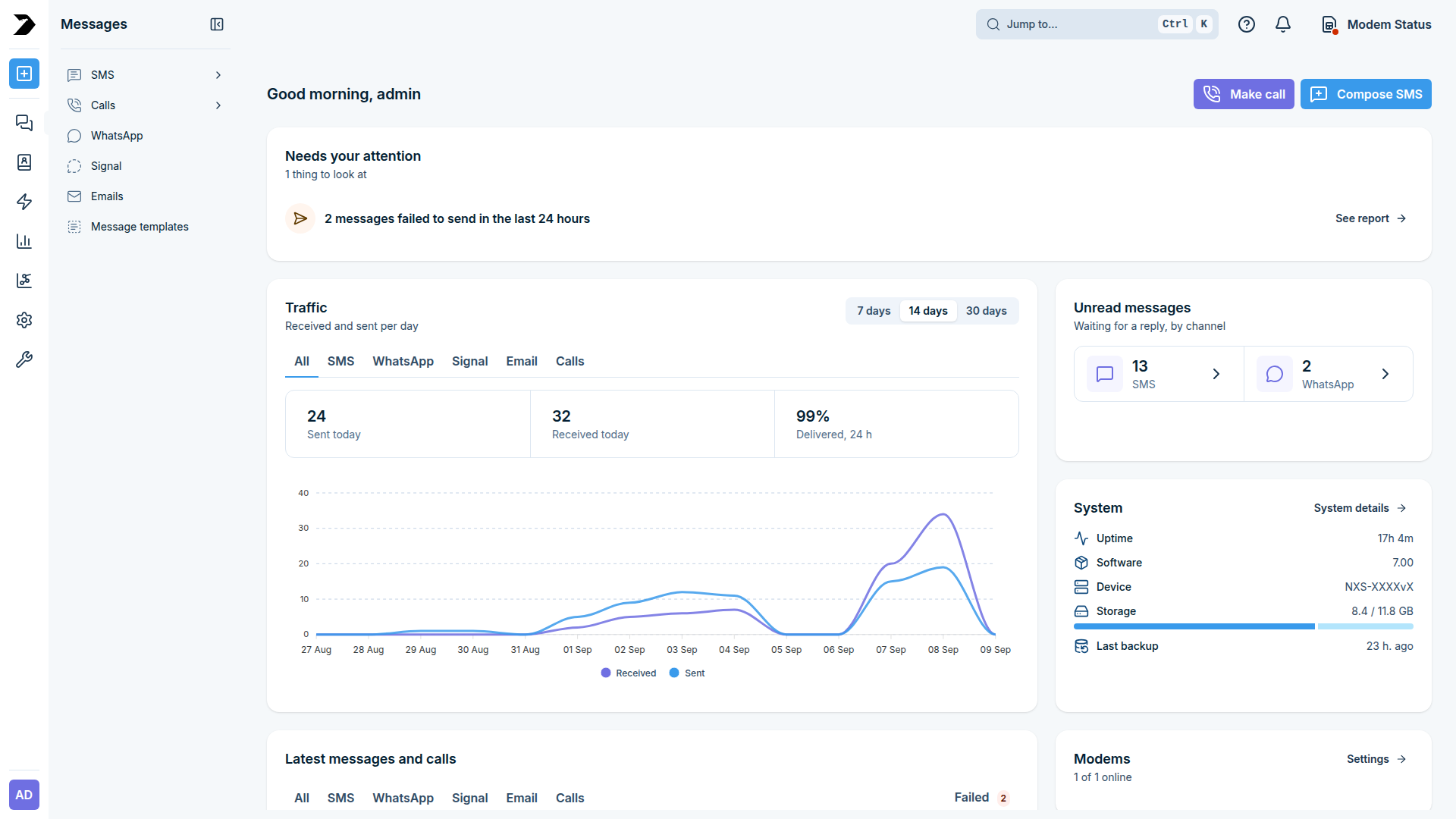
Left navigation expanded over the main content area, with the top bar above it
Left navigation - an icon rail giving access to Messages, Phonebook, Automation, Reports, Monitoring, Settings, and System. Hovering an icon names the section; clicking it expands a panel listing that section’s pages by name, as Messages is above. The button in the panel’s own header closes it again.
Top bar - the Jump to… search (
Ctrl K) lets you jump straight to any page by name instead of navigating the menu; it also shows notifications, help, and the modem status indicator.Main content area - the page for whatever section is currently selected.
Dashboard
The Dashboard is the landing page after signing in. It opens with a greeting and the quick-action buttons, followed by cards that summarise what needs acting on, message traffic, unanswered conversations, device health, recent activity, and modem state.
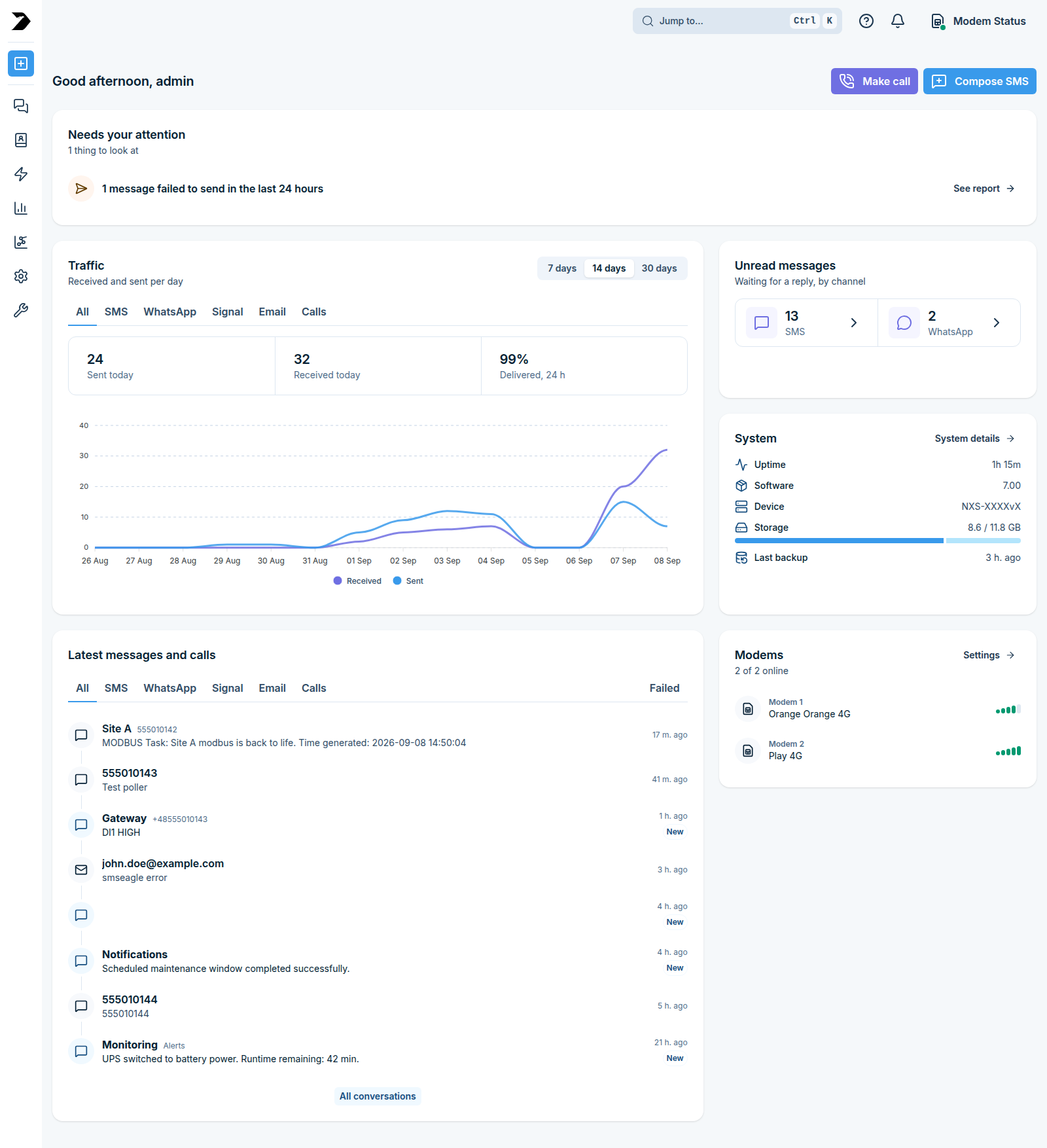
Needs your attention
Collects the items worth acting on right now, with the number of them under the card title and how many of those are critical. Each entry links to the page where you can deal with it, so a message stuck in the outbox links to the outbox folder, and a failed-delivery entry links to Reports & Statistics.

Traffic
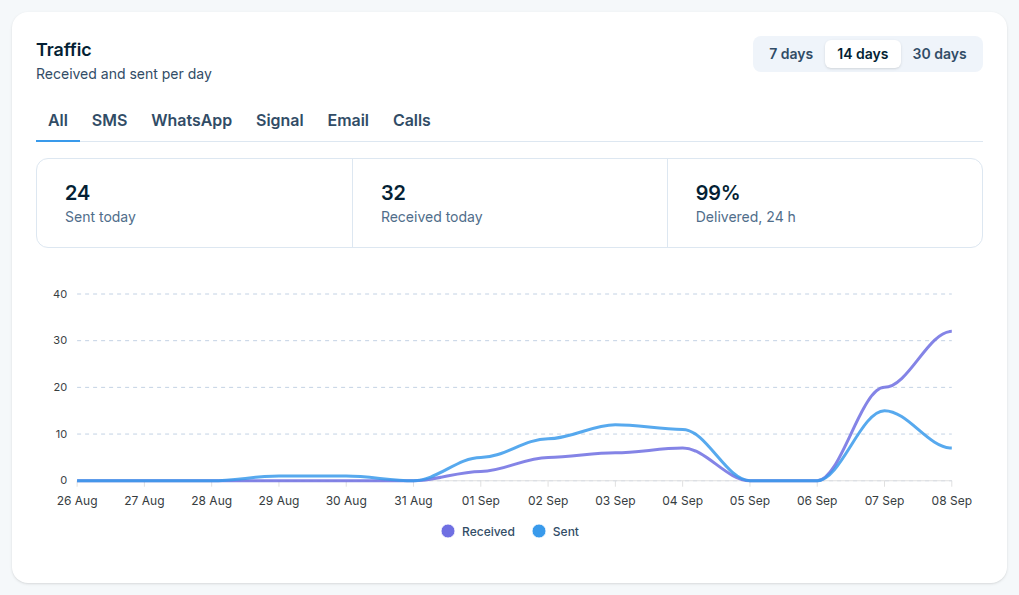
Received and sent messages per day. The tabs narrow the card to a single channel (SMS, WhatsApp, Signal, Email, or Calls), and the 7 days / 14 days / 30 days buttons set the range of the chart below. Three counters sit above the chart:
Sent today - messages sent since midnight
Received today - messages received since midnight
Delivered, 24 h - share of the messages sent in the last 24 hours that have been confirmed as delivered
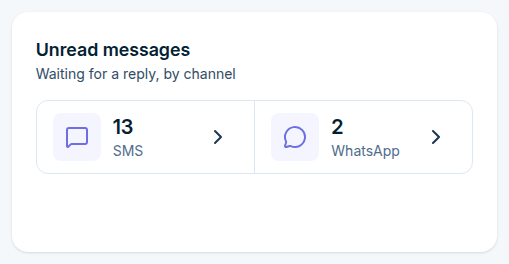
Unread messages
Conversations still waiting for a reply, counted per channel. Each tile opens that channel’s conversation list, see Messages.
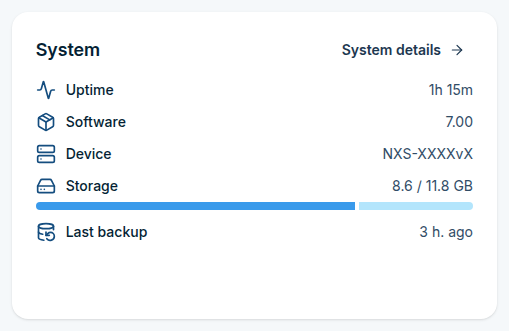
System
Device health at a glance: uptime, software version, device type, storage used out of total, and how long ago the last backup ran. System details opens the System section.
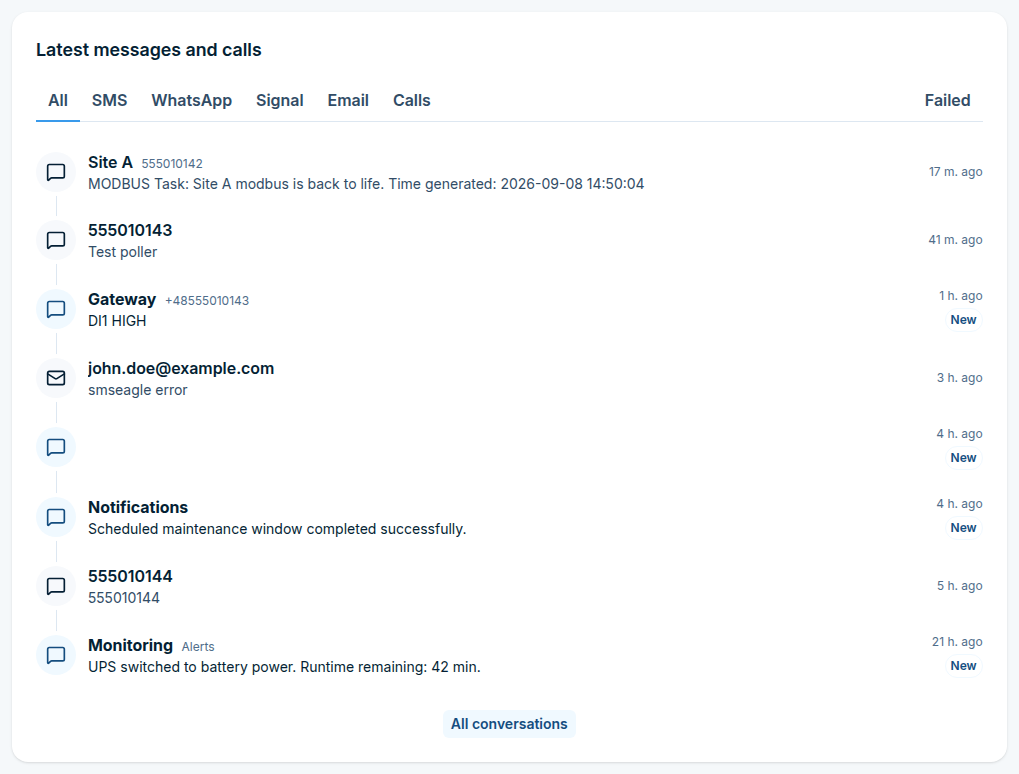
Latest messages and calls
The most recent traffic across all channels, newest first, with the sender, the beginning of the message, and how long ago it arrived. The tabs limit the list to one channel, and Failed lists what did not go out. Anything still unread is marked New. All conversations opens the full list in Messages.
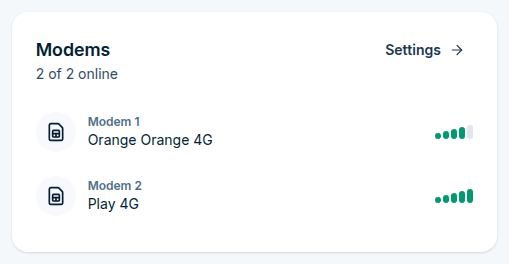
Modems
How many modems are online out of those installed, and for each one the network it is registered to, the radio technology, and the signal strength. Settings opens the modem configuration, see Settings.
Quick actions
Two buttons in the top-right corner of the Dashboard.
Both open the same Compose dialog, on a different tab:
Compose SMS opens it on the Message tab - pick the message type (SMS, Flash SMS, MMS, USSD Code, Signal, WhatsApp, Email), the recipients (from the Phonebook, typed in manually, or from a CSV file), when to send, and the message itself. A saved template can be used instead of typing the text, see Messages.
Make call opens it on the Call tab - pick the call type (ring only, text to speech, an audio file), the recipients, and when to place the call, see Messages.
A channel that is not configured on this device is greyed out in the message type list.
Personal account settings
Click your avatar (bottom-left) and choose Account settings to manage your own account, under three tabs.
Personal data
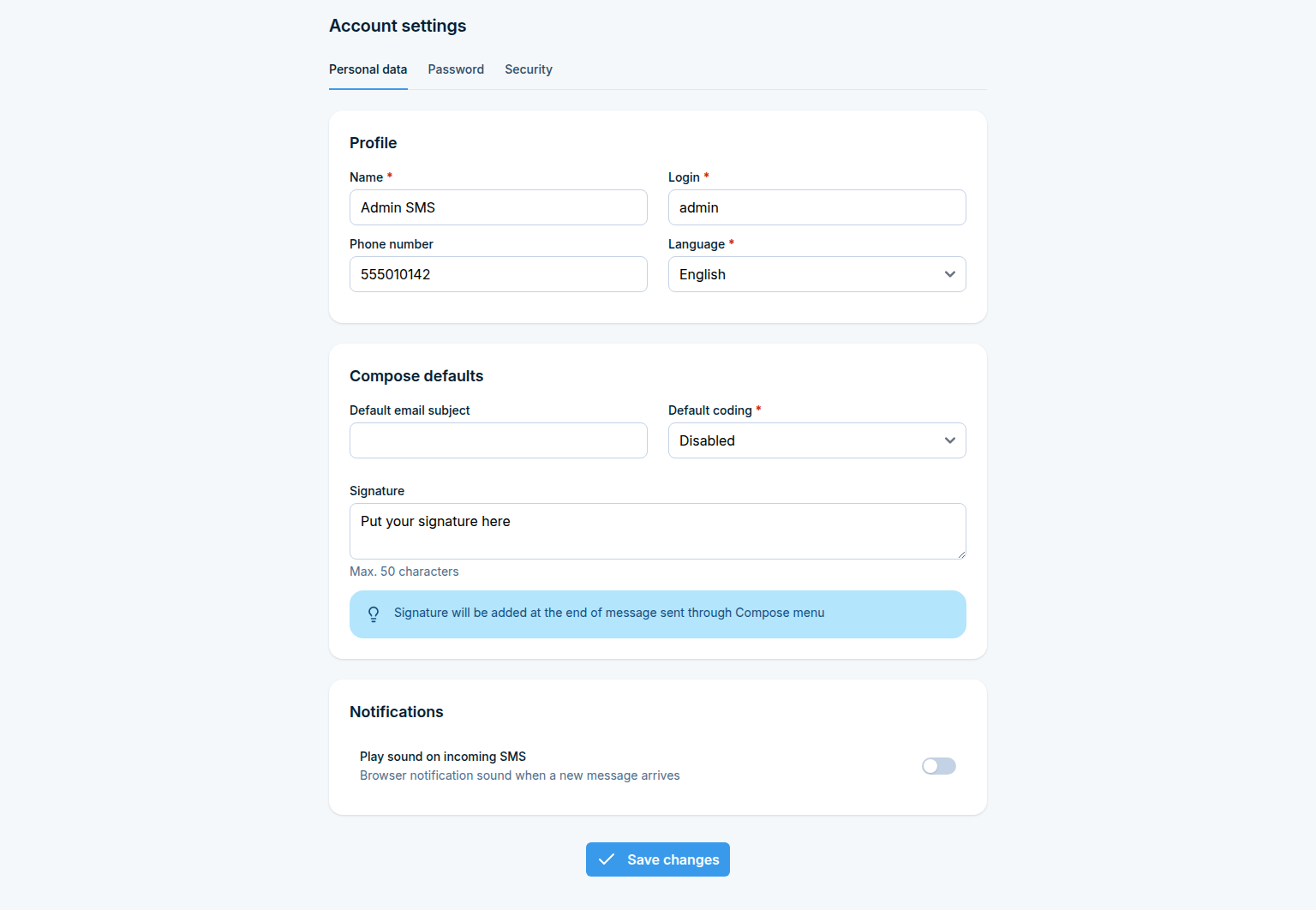
Profile - name, login, phone number, and the interface language for your own account
Compose defaults - the default email subject, the default SMS coding, and a signature of up to 50 characters, appended to messages sent from Compose
Notifications - whether the browser plays a sound when a new message arrives
Save changes applies the whole tab at once.
Password
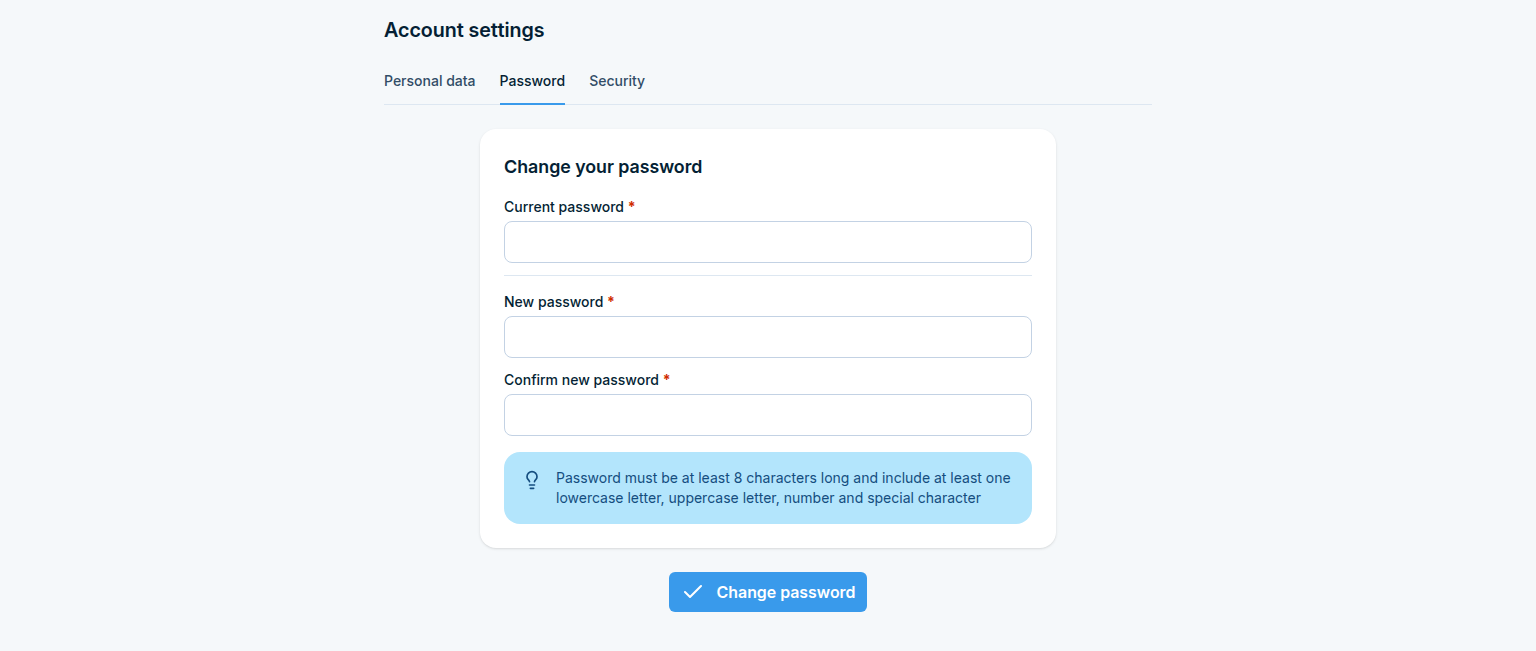
Change your own password by entering the current one and the new one twice. The new password must be at least 8 characters long and contain a lowercase letter, an uppercase letter, a number, and a special character.
Security
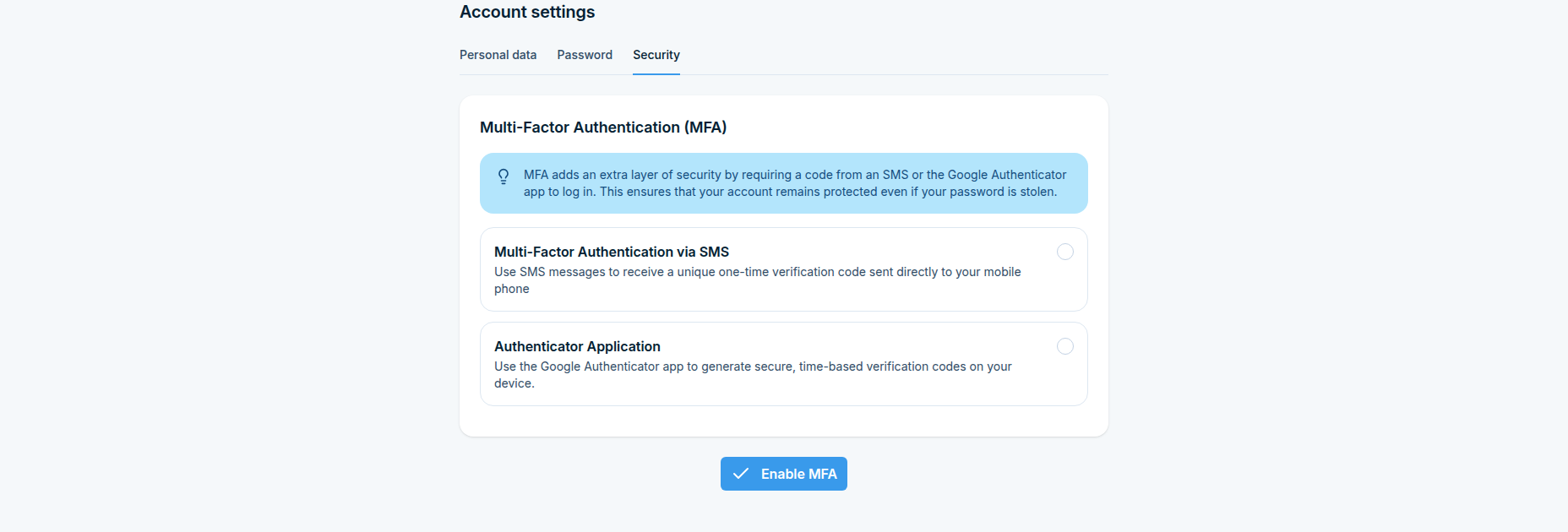
Configure your own Multi-Factor Authentication, either by SMS or with an authenticator application. The full walkthrough, including enforcing MFA device-wide, is in MFA.